20 systemctl Command Line Examples for System and Service Management

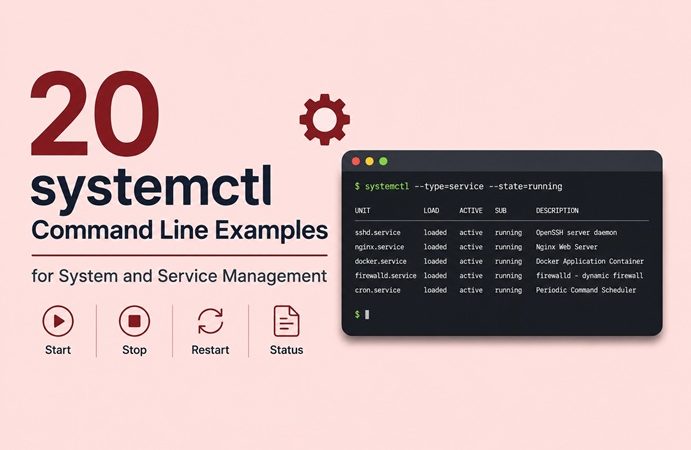
On modern Linux distributions such as Ubuntu, Debian, CentOS, Rocky Linux, and Fedora, systemctl is the primary command-line tool used to control and manage services. It is part of systemd, the default init system for most Linux servers today.
In this article, we will cover 20 essential systemctl commands that every Linux administrator, DevOps engineer, and system operator should know.
What Is systemctl?
systemctl is a command-line utility used to interact with systemd units, including:
- Services (
.service) - Sockets (
.socket) - Timers (
.timer) - Targets (
.target) - Mount points (
.mount)
It allows you to start, stop, restart, enable, disable, and monitor services efficiently.
1. Check Service Status
systemctl status nginxDisplays detailed information about the nginx service, including its current state, logs, and process ID.
2. Start a Service
sudo systemctl start apache2Starts the Apache web server immediately.
3. Stop a Service
sudo systemctl stop apache2Stops the Apache service gracefully.
4. Restart a Service
sudo systemctl restart sshdRestarts the SSH service, useful after configuration changes.
5. Reload a Service Configuration
sudo systemctl reload nginxReloads the service configuration without interrupting active connections.
6. Enable a Service at Boot
sudo systemctl enable dockerConfigures Docker to start automatically during system boot.
7. Disable a Service at Boot
sudo systemctl disable dockerPrevents Docker from starting automatically at boot time.
8. List All Active Services
systemctl list-units --type=serviceShows all currently running services.
9. List All Loaded Units
systemctl list-unitsDisplays all loaded systemd units, not limited to services.
10. List Installed Unit Files
systemctl list-unit-filesShows all installed unit files and their enablement state.
11. Display Detailed Unit Information
systemctl show sshdOutputs all properties and runtime details of the SSH service.
12. Mask a Service
sudo systemctl mask apache2Completely prevents a service from being started, even manually.
13. Unmask a Service
sudo systemctl unmask apache2Removes the mask and allows the service to start again.
14. List Failed Services
systemctl --failedDisplays all services that failed to start or crashed.
15. Check System Boot Status
systemctl is-system-runningShows whether the system is fully operational, degraded, or still booting.
16. Enable and Start a Service Immediately
sudo systemctl enable --now nginxEnables the service at boot and starts it right away.
17. Reboot the System
sudo systemctl rebootReboots the system using systemd.
18. Power Off the System
sudo systemctl poweroffSafely shuts down the system.
19. Switch to Rescue Mode
sudo systemctl rescueEnters rescue mode for system recovery and troubleshooting.
20. Isolate a Target
sudo systemctl isolate multi-user.targetSwitches the system to multi-user (non-graphical) mode.
Useful systemctl Tips
- Always check service status before restarting:
systemctl status <service>- After editing unit files, reload systemd:
sudo systemctl daemon-reload- Use
journalctltogether withsystemctlfor log analysis.
Conclusion
Mastering systemctl is essential for anyone managing Linux servers. With these 20 systemctl command-line examples, you can confidently control services, diagnose system issues, and manage system behavior efficiently.
Whether you are a system administrator, DevOps engineer, or Linux enthusiast, understanding systemctl will significantly improve your operational workflow.
Related posts:
 Removing Files with Hyphenated Names in Unix Systems
How To Clear the APT Cache and Free Up Disk Space on Ubuntu 24.04
Removing Files with Hyphenated Names in Unix Systems
How To Clear the APT Cache and Free Up Disk Space on Ubuntu 24.04
 Changing Hostname on Rocky Linux 8
How to Change Hostname on CentOS 7
How To Remove Users on Linux
Changing Hostname on Rocky Linux 8
How to Change Hostname on CentOS 7
How To Remove Users on Linux
 ifconfig Command in Linux (2026 Guide): Examples, Installation, and Modern Alternatives
 How To Expand Ubuntu 24.04 LTS File System Volume On VM Ware
CHMOD in Linux and Unix: Understanding File Permissions and Usage
How To Expand Ubuntu 24.04 LTS File System Volume On VM Ware
CHMOD in Linux and Unix: Understanding File Permissions and Usage
