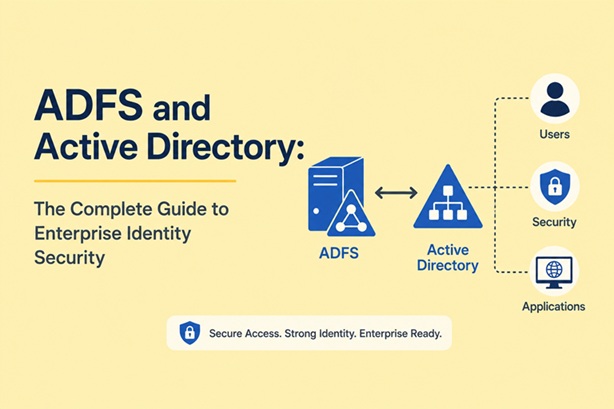
ADFS and Active Directory: The Complete Guide to Enterprise Identity Security

Introduction: Why Digital Identity Is Your Organization’s Most Valuable Asset
Picture a large corporate office building. Every employee carries an access card that determines which rooms they’re allowed to enter. That card doesn’t just open doors — it is their identity within the building.
In the digital world, Active Directory (AD) and Active Directory Federation Services (ADFS) work in exactly the same way — except the scale is far more complex, the stakes are far higher, and the consequences of getting it wrong can be devastating for your entire organization.
According to cybersecurity industry reports, over 80% of data breaches involve compromised credentials. This statistic alone underscores why a robust, centralized identity management system isn’t a luxury — it’s a necessity.
In this guide, we’ll walk through everything you need to know about ADFS and Active Directory: what they are, how they work together, why thousands of enterprises worldwide rely on them, and how to implement them effectively in your own environment.
<Part 1: Understanding Active Directory (AD) — The Foundation of Everything
What Is Active Directory?
Active Directory (AD) is a directory service developed by Microsoft, first introduced with Windows 2000 Server. At its core, AD is a centralized database that stores information about every object within a network — users, computers, groups, printers, policies, and more.
When an employee sits down at their workstation each morning and types their username and password, Active Directory is working behind the scenes to verify who they are and what they’re allowed to access. It happens in milliseconds, invisibly, billions of times a day across organizations worldwide.
Core Components of Active Directory
To truly understand ADFS, you first need a solid grasp of Active Directory’s building blocks:
1. Domain
A domain is the fundamental administrative unit in AD. All objects within a single domain share the same directory database, the same security policies, and the same trust relationships. A domain might look like company.local for internal use or bckinfo.com for an internet-facing environment.
2. Domain Controller (DC)
The Domain Controller is the server that runs Active Directory Domain Services. It processes authentication requests, stores the AD database, enforces security policies, and replicates data to other DCs. In any production environment, you should always have at least two Domain Controllers for redundancy.
3. Organizational Unit (OU)
An OU is a container within a domain used to organize objects — users, computers, and groups — into logical groupings. For example: an OU for the Finance department, an OU for IT staff, or an OU for a regional branch office. OUs are the primary tool for delegating administrative control and applying Group Policies.
4. Forest and Tree
Multiple domains can be connected to form a tree, and multiple trees make up a forest. The forest is the highest-level security boundary in Active Directory — objects in different forests do not automatically trust each other.
5. Group Policy Object (GPO)
GPOs are sets of rules applied to users or computers within AD. Through GPOs, administrators can enforce password complexity requirements, map network drives, restrict software installation, configure firewall rules, and control hundreds of other settings — all from a central location, applied automatically across the entire organization.
Why Active Directory Is Business-Critical
- Centralized Authentication: One identity to access all network resources.
- Authorization Control: Granular control over who can access what.
- Policy Enforcement: Consistent security standards across the entire organization.
- Audit and Compliance: Detailed logging of user activity for regulatory requirements.
- Scalability: AD can manage millions of objects across global enterprises.
Part 2: ADFS — Building Bridges Beyond Your Network Perimeter
What Is ADFS?
Active Directory Federation Services (ADFS) is a role service built into Windows Server that extends the capabilities of Active Directory beyond the boundaries of your internal network.
If Active Directory is the identity system inside your organization, ADFS is the bridge that allows those identities to be recognized and trusted by systems outside your organization — including third-party applications, cloud services, business partners, and SaaS platforms.
The core technology behind ADFS is identity federation — a concept that allows two or more organizations (or systems) to mutually trust each other’s authentication mechanisms. Instead of creating duplicate accounts in every system, users authenticate once against a source they already trust, and that trust is then extended to other systems via ADFS.
The Power of Single Sign-On (SSO)
One of ADFS’s most impactful benefits is enabling Single Sign-On (SSO). With SSO, a user logs in once using their existing Active Directory credentials, and gains access to multiple applications — both internal and external — without being prompted to log in again.
Consider a typical employee’s workday. They might need to access:
- Microsoft 365 (email, Teams, SharePoint)
- An ERP system for operations
- A cloud-based HR portal
- A CRM from an external vendor
- A project management SaaS tool
Without SSO, each of those systems demands its own username and password. That means five sets of credentials to remember, five separate login pages, five potential points of failure — and five times the risk of weak or reused passwords.
With ADFS and SSO, the employee logs in once when they start their computer, and every application simply works. Security improves. Productivity increases. Password-related helpdesk tickets plummet.
How ADFS Works: The Step-by-Step Authentication Flow
Understanding ADFS requires familiarity with a few key concepts:
Claims
A claim is a statement about a user — their name, email address, group membership, job title, or any other attribute. ADFS uses claims as the currency of identity, packaging this information into a token that applications can read and act upon.
Security Token
After a user authenticates, ADFS issues a security token containing a bundle of claims. This token — typically in SAML (Security Assertion Markup Language) format — is sent to the target application as proof of identity. The application reads the token, trusts it (because it trusts ADFS), and grants the appropriate level of access.
Identity Provider (IdP) and Relying Party (RP)
- Identity Provider (IdP): The party that verifies a user’s identity — in this case, ADFS backed by Active Directory.
- Relying Party (RP): The application or service that trusts the IdP’s tokens and grants access based on the claims they contain.
The ADFS Authentication Flow:
Step 1: User attempts to access Application X (Relying Party)
         ↓
Step 2: Application X redirects user to ADFS (Identity Provider)
         ↓
Step 3: ADFS presents a login page and requests credentials
         ↓
Step 4: ADFS verifies credentials against Active Directory
         ↓
Step 5: Active Directory confirms identity — authentication successful
         ↓
Step 6: ADFS issues a Security Token containing Claims
         ↓
Step 7: Token is sent back to Application X
         ↓
Step 8: Application X validates the token and grants access
         ↓
Step 9: User is logged in — no additional credentials required ✓
This entire flow typically completes in under two seconds — invisible to the user, but critically important to security.
Part 3: Protocols and Standards Supported by ADFS
ADFS’s strength lies in its support for industry-standard protocols, making it compatible with thousands of applications and services across the technology ecosystem.
1. SAML 2.0 (Security Assertion Markup Language)
SAML 2.0 is the most widely used standard for exchanging authentication and authorization data between parties. It uses XML-based assertions and is the go-to protocol for enterprise application integrations. If you’re connecting ADFS to Salesforce, ServiceNow, Workday, or most other enterprise SaaS platforms, you’ll likely be using SAML 2.0.
2. WS-Federation
WS-Federation is an older protocol that remains particularly relevant within the Microsoft ecosystem. Applications like SharePoint and older versions of Dynamics CRM rely on WS-Federation. While SAML has largely superseded it for new integrations, WS-Federation support in ADFS ensures backward compatibility with legacy systems.
3. OAuth 2.0 and OpenID Connect (OIDC)
ADFS 2016 and later versions added full support for OAuth 2.0 and OpenID Connect — the modern, lightweight protocols that power most web and mobile applications today. If you’re integrating with APIs, mobile apps, or modern JavaScript-based web applications, these are the protocols you’ll use.
4. Kerberos
For authentication within the internal Windows network, ADFS leverages Kerberos — the protocol already built into Active Directory. This enables seamless, password-free SSO for users who are already logged into a domain-joined Windows machine on the corporate network.
Part 4: ADFS Architecture and Deployment
Key Infrastructure Components
1. ADFS Server
The primary server running the Federation Service. This is the brain of the ADFS deployment — it processes authentication requests, issues tokens, manages trust relationships with relying parties, and maintains the claims pipeline.
2. Web Application Proxy (WAP)
WAP is a role service installed on a server in the DMZ (Demilitarized Zone) or network perimeter. Its job is to receive incoming requests from the internet and forward them to the internal ADFS server — without exposing the ADFS server directly to the public internet. WAP acts as a secure reverse proxy and also enables pre-authentication for published applications.
3. Active Directory Domain Services (AD DS)
The classic Active Directory that serves as the authentication backbone. ADFS relies on AD DS to verify user credentials and retrieve user attributes for claims.
4. SQL Server or Windows Internal Database (WID)
ADFS uses a database to store configuration, certificates, and for larger deployments, artifact data. Small deployments can use the built-in Windows Internal Database; larger enterprise deployments should use SQL Server for better performance and high availability.
Common Deployment Scenarios
Scenario 1: Internal SSO
ADFS deployed purely for SSO within the corporate network — enabling users to access multiple internal applications with a single login. Ideal for organizations with many internal web applications and portals.
Scenario 2: Extranet / Remote Access
Adding a Web Application Proxy allows remote workers and external users to securely access internal applications via the internet — without requiring a VPN connection to every application.
Scenario 3: B2B Federation
Two partner organizations each running ADFS can establish a federation trust between their respective systems. Employees of Company A can then access applications in Company B using their own corporate credentials — eliminating the need to create and manage external accounts.
Scenario 4: Hybrid Cloud Integration
ADFS serves as the bridge between an on-premises Active Directory and cloud services like Microsoft 365, Salesforce, AWS, or Google Workspace. Users authenticate against AD, and ADFS federates that identity to cloud applications.
Part 5: ADFS vs. Azure AD (Microsoft Entra ID) — Which Is Right for You?
With the rise of cloud computing, many organizations are evaluating Azure Active Directory (now rebranded as Microsoft Entra ID) as either an alternative or a complement to ADFS. Understanding the differences is crucial for making the right architectural decision.
| Aspect | ADFS (On-Premises) | Azure AD / Entra ID (Cloud) |
| Hosting | Your own servers (on-premises) | Microsoft cloud (SaaS) |
| Upfront Cost | Hardware + software investment | Monthly subscription |
| Maintenance | Your IT team is responsible | Managed by Microsoft |
| Scalability | Limited by hardware capacity | Virtually unlimited |
| High Availability | Requires manual HA configuration | Built-in 99.99% SLA |
| Modern Protocols | Full support from ADFS 2016+ | Native OAuth 2.0, OIDC |
| Data Control | Complete — data stays on your servers | Data resides in Microsoft’s cloud |
| MFA Options | Requires third-party or Azure MFA | Built-in, feature-rich MFA |
| Conditional Access | Limited (ADFS 2016+) | Advanced, policy-rich |
| Compliance | Easier for data residency requirements | Varies by regulation and region |
When to Choose ADFS:
- Your organization operates in a heavily regulated industry with strict data residency requirements.
- You have complex on-premises infrastructure that cannot or will not move to the cloud.
- You need full control over your authentication infrastructure.
- You have existing investments in on-premises infrastructure.
When to Choose Azure AD / Entra ID:
- Your organization is cloud-first or heavily invested in Microsoft 365.
- You want to reduce the operational burden of managing authentication infrastructure.
- You need advanced conditional access, Identity Protection, and Privileged Identity Management features.
The Hybrid Approach:
Many enterprises use both. Azure AD Connect (now Microsoft Entra Connect) synchronizes on-premises Active Directory with Azure AD, allowing ADFS to handle on-premises authentication while Azure AD manages cloud application access. This hybrid model gives organizations the best of both worlds during a phased cloud migration.
Part 6: ADFS Security Best Practices
Deploying ADFS without rigorous security practices is like installing a state-of-the-art vault door — and then leaving it propped open. Here are the essential security measures every ADFS deployment must include:
1. Treat ADFS Servers as Tier 0 Assets
ADFS servers hold the keys to your entire identity infrastructure. Treat them with the same level of security as Domain Controllers: restrict physical and remote access, enforce privileged access workstations (PAWs) for administration, and apply strict just-in-time access policies.
2. Manage Certificates Proactively
ADFS depends on SSL/TLS certificates for encryption and token signing. Use certificates from a trusted Certificate Authority, track their expiration dates meticulously, and plan renewals at least 60 days before expiry. An expired certificate on an ADFS server can lock out your entire user base.
3. Enforce Multi-Factor Authentication (MFA)
At a minimum, require MFA for all administrative accounts and for all external (extranet) access. ADFS supports integration with Azure MFA, Duo, and other MFA providers. Consider requiring MFA for high-privilege application access regardless of network location.
4. Implement Continuous Monitoring and Alerting
Enable ADFS audit logging and feed logs into your SIEM (Security Information and Event Management) platform. Create alerts for anomalies such as: a surge in failed authentication attempts, logins from unusual geographic locations, token issuance for sensitive relying parties outside business hours.
5. Apply Conditional Access Policies
ADFS 2016 and later supports Access Control Policies that let you enforce rules such as: “Allow access to Application X only if the user is on the corporate network or using a compliant device.” This dramatically reduces the attack surface for sensitive applications.
6. Harden the Network Perimeter
- Place WAP servers in the DMZ — never expose ADFS servers directly to the internet.
- Only open port 443 (HTTPS) inbound from the internet to WAP.
- Restrict communication between WAP and ADFS to necessary ports only.
- Disable all unnecessary services and protocols on ADFS and WAP servers.
7. Plan and Test High Availability
An ADFS outage means nobody can log into anything. Deploy a minimum of two ADFS servers and two WAP servers behind load balancers. Test your failover scenario regularly — not just during the initial deployment. Include ADFS in your disaster recovery plan.
8. Regularly Review Relying Party Trusts
Over time, organizations accumulate relying party trusts for applications that are no longer in use. Conduct quarterly reviews and remove stale trusts. An unused trust that’s been compromised is just as dangerous as an active one.
Part 7: ADFS Implementation Overview
Here’s a high-level roadmap for organizations planning to deploy ADFS:
Phase 1: Planning and Prerequisites
- Inventory all applications that will be integrated (internal and external)
- Define your deployment topology (internal only, extranet, B2B, hybrid cloud)
- Obtain an SSL certificate from a trusted CA for the federation service name
- Verify AD DS is healthy and properly configured
- Plan your high availability architecture and hardware requirements
Phase 2: ADFS Server Installation
- Install Windows Server 2019 or 2022 on dedicated hardware or virtual machines
- Install the Active Directory Federation Services role via Server Manager or PowerShell
- Run the ADFS Configuration Wizard to set up the federation service
- Register the service account and configure the federation service name (e.g.,
adfs.bckinfo.com)
Phase 3: Configure Relying Party Trusts
- Add each application as a Relying Party Trust in the ADFS management console
- Configure Claim Issuance Policy rules — define what user attributes to send and in what format
- Test authentication flows thoroughly with real user accounts
Phase 4: Deploy Web Application Proxy
- Install WAP role on dedicated servers in the DMZ
- Configure WAP to proxy requests to the internal ADFS servers
- Test external access scenarios from outside the corporate network
Phase 5: Monitoring and Ongoing Management
- Enable and configure ADFS auditing
- Integrate logs with your monitoring platform
- Document all configurations, certificate expiry dates, and trust relationships
- Establish a change management process for ADFS modifications
Part 8: Real-World Use Cases for ADFS
Understanding ADFS in theory is one thing — seeing how it solves real business problems is another. Here are common enterprise scenarios where ADFS delivers measurable value:
Microsoft 365 Integration
Organizations that need to maintain user accounts in on-premises Active Directory (rather than Azure AD only) use ADFS to federate authentication to Microsoft 365. Users log in with their corporate AD credentials and get seamless access to Outlook, Teams, SharePoint, and all Microsoft 365 services.
SaaS Application Consolidation
An enterprise using Salesforce, Workday, ServiceNow, and other SaaS platforms can configure each as a Relying Party in ADFS, creating a unified SSO experience across all platforms with a single corporate login.
Partner Extranet Access
A manufacturing company working with dozens of suppliers can give each supplier’s employees access to a dedicated partner portal — authenticating through their own organization’s ADFS system, with no account provisioning required on the manufacturer’s side.
Legacy Application Modernization
Organizations with aging web applications that have no native SSO capability can publish those applications through ADFS pre-authentication via WAP, adding a modern security layer without rewriting the application itself.
Regulatory Compliance
Healthcare organizations, financial institutions, and government agencies facing strict compliance requirements (HIPAA, SOX, PCI-DSS, etc.) use ADFS to maintain comprehensive audit trails of who accessed which application, when, and from where — all logged and attributable to a specific identity.
Conclusion: ADFS and Active Directory — A Foundation Worth Investing In
Active Directory and ADFS are not just Microsoft products — they represent a proven, battle-tested approach to enterprise identity security that has stood up to two decades of real-world deployment in organizations of every size and industry.
In an era where a single compromised credential can cascade into a full-scale data breach, building your identity management on a robust, auditable, centralized foundation is one of the highest-ROI investments your IT organization can make. ADFS extends that foundation outward — to the cloud, to partners, to remote workers — without creating new security gaps.
The organizations that get identity right don’t just protect themselves from breaches. They enable their people to work more efficiently, reduce IT overhead, simplify compliance, and build a foundation that scales with the business.
Understanding ADFS and Active Directory is not just a technical exercise — it’s a strategic advantage.
FAQ: Frequently Asked Questions About ADFS and Active Directory
Q: Is ADFS free to use?
A: ADFS is included as a role in Windows Server, so if you’re already licensed for Windows Server, there’s no additional software cost. However, you’ll need to account for server hardware, Windows Server licenses, and Client Access Licenses (CALs) in your total cost calculation.
Q: Can ADFS support mobile applications?
A: Yes. ADFS 2016 and later versions fully support OAuth 2.0 and OpenID Connect, which are the standard protocols used by modern mobile and web applications. Many mobile apps integrate with ADFS for corporate SSO.
Q: What’s the difference between ADFS and a VPN?
A: A VPN secures the network connection and grants broad access to the internal network. ADFS secures user identity and grants access to specific applications based on claims — without requiring full network access. The two serve complementary purposes and are often used together.
Q: How long does an ADFS implementation take?
A: A straightforward implementation with a few relying party trusts can be completed in one to two weeks by an experienced team. Complex deployments involving many applications, custom claims transformations, and extensive testing can take several months.
Q: Is ADFS being replaced by Azure AD?
A: Microsoft is encouraging organizations to move toward Azure AD (Entra ID) for cloud-centric identity management, and has stated that ADFS will not receive major new features going forward. However, ADFS remains fully supported and continues to be the right choice for organizations with strict on-premises requirements, complex legacy environments, or data sovereignty concerns that prevent full cloud adoption.
Q: How does ADFS handle account lockouts?
A: ADFS includes Extranet Lockout protection, which can lock out accounts after a configurable number of failed authentication attempts from external sources — without locking the account inside Active Directory. ADFS 2016 introduced Extranet Smart Lockout, which distinguishes between known-good IPs and unfamiliar locations for even more nuanced protection.
Related posts:
 Top 10 Penetration Testing Tools in 2025: Essential Tools for Ethical Hackers
 How to Install Nessus Scanner on CentOS Stream 10 — Complete Step-by-Step Guide
 Cloudflare Zero Trust Setup Guide for Small Teams
 Server Hardening Guide: Linux Security Best Practices for 2025
 How to Install Fail2Ban on CentOS Stream 10 (2026 Guide)
 Linux Open Port: Managing Firewall Ports Step-by-Step Guide
 OpenVAS and Network Security: A Complete Guide to Vulnerability Scanning
 Docker Network Security: A Complete Guide to Securing Container Communication in 2026
