How to Install n8n on Rocky Linux 10.2: Native, Docker & Systemd Setup Guide

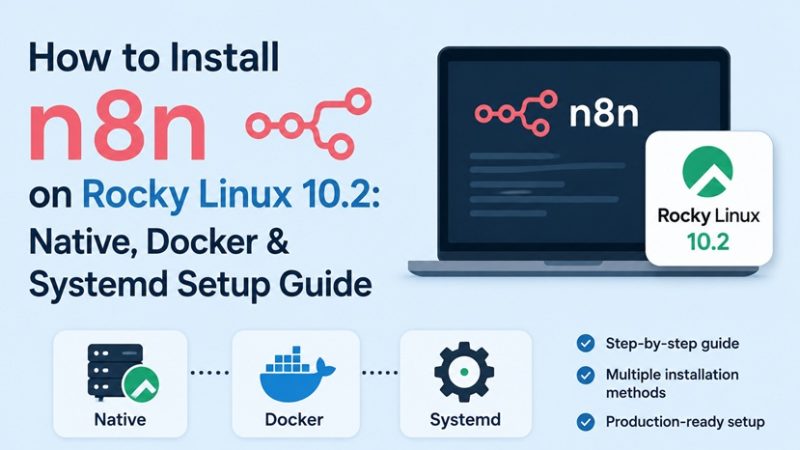
n8n is a fair-code workflow automation platform — an open-source alternative to Zapier or Make — that lets you connect APIs, databases, and AI agents on a visual canvas while still dropping into JavaScript or Python when you need it. This guide installs n8n natively on Rocky Linux 10.2 using Node.js and systemd, secures it behind an Nginx reverse proxy with SSL, and covers the Docker Compose alternative for teams that prefer container-based deployment.
Table of Contents
- Prerequisites
- Installation Method Comparison
- Architecture Overview
- Step 1 — Update the System and Install Node.js 22 LTS
- Step 2 — Create a Dedicated System User
- Step 3 — Install n8n
- Step 4 — Configure Environment Variables
- Step 5 — Create the systemd Service
- Step 6 — Configure firewalld
- Step 7 — Reverse Proxy with Nginx and SSL (Certbot)
- Step 8 — SELinux Configuration
- Docker Compose Alternative
- Updating n8n
- Troubleshooting
- FAQ
- Related Articles
Prerequisites
- A Rocky Linux 10.2 server (minimal install is fine) with at least 1 vCPU / 2 GB RAM
- A non-root user with
sudoprivileges - A domain name pointed at the server (for the Nginx + SSL section)
- Basic familiarity with
systemctl,firewall-cmd, anddnf
Installation Method Comparison
| Method | Setup Complexity | Update Path | Isolation | Best For |
|---|---|---|---|---|
| npm + systemd (native) | Moderate | npm update -g n8n + restart | Shares host Node.js runtime | Homelabs, single-tenant servers, teams already standardized on systemd |
| Docker (single container) | Low | docker pull + recreate container | Full container isolation | Quick evaluation, disposable environments |
| Docker Compose (with Postgres) | Moderate–High | docker compose pull && up -d | Full isolation, easy multi-service stack | Production, queue mode, multiple workers |
| PM2 process manager | Low–Moderate | pm2 restart n8n after upgrade | Shares host runtime | Developers who run several Node.js apps and want built-in monitoring |
This guide focuses on the npm + systemd path as the primary method, since it matches how the rest of this Rocky Linux 10 series (Docker, Kubernetes, Buildah/Podman) is documented on this site, and includes a Docker Compose section as the container-based alternative.
Architecture Overview
                        Internet
                            │
                            │  HTTPS :443
                            ▼
                 ┌─────────────────────┐
                 │  Nginx (reverse     │
                 │  proxy + Certbot    │
                 │  SSL termination)   │
                 └──────────┬──────────┘
                            │ proxy_pass
                            │ 127.0.0.1:5678
                            ▼
                 ┌─────────────────────┐
                 │  n8n (systemd unit) │
                 │  user: n8n          │
                 │  Node.js 22 LTS     │
                 └──────────┬──────────┘
                            │
                 ┌──────────┴───────────┐
                 ▼                      ▼
         ┌───────────────┐     ┌──────────────────┐
         │SQLite         │     │ PostgreSQL       │
         │~/.n8n/database│     │ (optional, prod) │
         └───────────────┘     └──────────────────┘

  firewalld: 443/tcp + 80/tcp open, 5678/tcp bound to localhost only
  SELinux:   httpd_can_network_connect = on (for Nginx → n8n proxy)
Step 1 — Update the System and Install Node.js 22 LTS
n8n requires Node.js between 20.19 and 24.x. Node.js 22 LTS is the safest pick for a production Rocky Linux 10.2 host.
sudo dnf update -y

# Install Node.js 22 LTS via NodeSource
curl -fsSL https://rpm.nodesource.com/setup_22.x | sudo bash -
sudo dnf install -y nodejs

# Verify
node -v      # expect v22.x
npm -v
If you prefer staying inside official Rocky Linux repositories instead of NodeSource, check available AppStream module streams first:
sudo dnf module list nodejs
sudo dnf module enable nodejs:22 -y
sudo dnf install -y nodejs
Step 2 — Create a Dedicated System User
Running n8n as root is a common but avoidable security mistake. Create an unprivileged system account instead:
sudo useradd --system --create-home --home-dir /home/n8n --shell /usr/sbin/nologin n8n
sudo mkdir -p /home/n8n/.n8n
sudo chown -R n8n:n8n /home/n8n
Step 3 — Install n8n
sudo npm install -g n8n
n8n --version
Test it manually before wiring up systemd:
sudo -u n8n n8n
# Ctrl+C once you see it listening on port 5678
Step 4 — Configure Environment Variables
Store configuration in an environment file rather than inline in the unit file, so secrets aren’t exposed via systemctl status or ps.
sudo mkdir -p /etc/n8n
sudo nano /etc/n8n/n8n.env
# /etc/n8n/n8n.env
N8N_HOST=n8n.yourdomain.com
N8N_PORT=5678
N8N_PROTOCOL=https
N8N_LISTEN_ADDRESS=127.0.0.1
WEBHOOK_URL=https://n8n.yourdomain.com/
GENERIC_TIMEZONE=Asia/Jakarta
N8N_ENCRYPTION_KEY=CHANGE_ME_TO_A_LONG_RANDOM_STRING
N8N_SECURE_COOKIE=trueGenerate a strong encryption key instead of typing one by hand:
openssl rand -hex 32Lock down the file:
sudo chown n8n:n8n /etc/n8n/n8n.env
sudo chmod 600 /etc/n8n/n8n.env
N8N_LISTEN_ADDRESS=127.0.0.1is what keeps n8n reachable only through the Nginx reverse proxy, not directly on the public interface.
Step 5 — Create the systemd Service
sudo nano /etc/systemd/system/n8n.service[Unit]
Description=n8n Workflow Automation
After=network.target
[Service]
Type=simple
User=n8n
Group=n8n
EnvironmentFile=/etc/n8n/n8n.env
ExecStart=/usr/bin/n8n start
WorkingDirectory=/home/n8n
Restart=always
RestartSec=5
StandardOutput=journal
StandardError=journal
SyslogIdentifier=n8n
# Basic hardening
NoNewPrivileges=true
PrivateTmp=true
ProtectSystem=strict
ReadWritePaths=/home/n8n
[Install]
WantedBy=multi-user.targetsudo systemctl daemon-reload
sudo systemctl enable --now n8n
sudo systemctl status n8nConfirm it’s listening locally:
curl -I http://127.0.0.1:5678Step 6 — Configure firewalld
Only 80/tcp and 443/tcp need to be public. Port 5678 stays internal because n8n is bound to 127.0.0.1.
sudo firewall-cmd --permanent --add-service=http
sudo firewall-cmd --permanent --add-service=https
sudo firewall-cmd --reload
sudo firewall-cmd --list-services| Port | Protocol | Exposure | Purpose |
|---|---|---|---|
| 80 | tcp | Public | HTTP → HTTPS redirect, Certbot ACME challenge |
| 443 | tcp | Public | HTTPS traffic to Nginx |
| 5678 | tcp | Localhost only | n8n application (never expose directly) |
Step 7 — Reverse Proxy with Nginx and SSL (Certbot)
sudo dnf install -y nginx
sudo systemctl enable --now nginx

sudo dnf install -y epel-release
sudo dnf install -y certbot python3-certbot-nginx
Create the site configuration:
sudo nano /etc/nginx/conf.d/n8n.confserver {
listen 80;
server_name n8n.yourdomain.com;
location / {
proxy_pass http://127.0.0.1:5678;
proxy_http_version 1.1;
proxy_set_header Upgrade $http_upgrade;
proxy_set_header Connection "upgrade";
proxy_set_header Host $host;
proxy_set_header X-Real-IP $remote_addr;
proxy_set_header X-Forwarded-For $proxy_add_x_forwarded_for;
proxy_set_header X-Forwarded-Proto $scheme;
proxy_read_timeout 300s;
}
}sudo nginx -t
sudo systemctl reload nginx
# Issue and auto-install the certificate
sudo certbot --nginx -d n8n.yourdomain.comCertbot rewrites the config to redirect HTTP to HTTPS and sets up a renewal timer automatically. Verify it:
sudo systemctl list-timers | grep certbotStep 8 — SELinux Configuration
Rocky Linux 10.2 ships with SELinux in Enforcing mode by default. Nginx cannot reach 127.0.0.1:5678 until you allow it to make outbound network connections:
getenforce
sudo setsebool -P httpd_can_network_connect 1
Reload Nginx and re-test:
sudo systemctl reload nginx
curl -I https://n8n.yourdomain.com
If you keep SELinux denials after this, inspect the audit log directly:
sudo ausearch -m avc -ts recentDocker Compose Alternative
If your Rocky Linux 10.2 host already runs Docker (see the Docker on Rocky Linux 10 guide for the SELinux-aware setup), you can run n8n in containers with PostgreSQL instead of SQLite — the recommended path once you move toward queue mode or multiple workers.
# docker-compose.yml
services:
  postgres:
    image: postgres:17
    restart: always
    environment:
      POSTGRES_USER: n8n
      POSTGRES_PASSWORD: change_me
      POSTGRES_DB: n8n
    volumes:
      - postgres_data:/var/lib/postgresql/data

  n8n:
    image: docker.n8n.io/n8nio/n8n:latest
    restart: always
    ports:
      - "127.0.0.1:5678:5678"
    environment:
      DB_TYPE: postgresdb
      DB_POSTGRESDB_HOST: postgres
      DB_POSTGRESDB_USER: n8n
      DB_POSTGRESDB_PASSWORD: change_me
      N8N_HOST: n8n.yourdomain.com
      N8N_PROTOCOL: https
      WEBHOOK_URL: https://n8n.yourdomain.com/
      GENERIC_TIMEZONE: Asia/Jakarta
    volumes:
      - n8n_data:/home/node/.n8n
    depends_on:
      - postgres

volumes:
  postgres_data:
  n8n_data:
docker compose up -dThe same Nginx + Certbot + SELinux steps from above (Steps 7–8) apply unchanged — Nginx still proxies to 127.0.0.1:5678, regardless of whether n8n runs natively or in a container.
Updating n8n
Native install:
sudo systemctl stop n8n
sudo npm update -g n8n
sudo systemctl start n8n
sudo journalctl -u n8n -f
Docker Compose:
docker compose pull
docker compose up -d
Always check the n8n release notes before upgrading across major versions — database migrations can require manual steps.
Troubleshooting
| Symptom | Likely Cause | Fix |
|---|---|---|
systemctl status n8n shows failed immediately | EnvironmentFile missing or unreadable by the n8n user | Check path/permissions: sudo chmod 600 /etc/n8n/n8n.env and confirm ownership |
Your Node.js version is currently not supported | Node.js version outside the 20.19–24.x range | Reinstall via NodeSource or dnf module with a supported major version |
EACCES: permission denied writing to .n8n | n8n running as a user without write access to its home directory | sudo chown -R n8n:n8n /home/n8n and re-run daemon-reload |
Nginx returns 502 Bad Gateway | SELinux blocking Nginx → n8n connection, or n8n not listening | Run sudo setsebool -P httpd_can_network_connect 1; confirm with curl -I http://127.0.0.1:5678 |
| Webhooks from external services never fire | WEBHOOK_URL unset or pointing at localhost | Set WEBHOOK_URL=https://yourdomain/ in /etc/n8n/n8n.env and restart the service |
| Port 5678 reachable from the internet directly | N8N_LISTEN_ADDRESS not set, or firewalld rule too broad | Set N8N_LISTEN_ADDRESS=127.0.0.1; never firewall-cmd --add-port=5678/tcp publicly |
| Certbot fails with “Connection refused” on port 80 | firewalld blocking HTTP, or Nginx not running | sudo firewall-cmd --add-service=http --permanent && sudo firewall-cmd --reload |
FAQ
Is SQLite good enough for a production n8n instance?
SQLite works fine for single-instance, low-to-moderate workflow volume. Once you need queue mode with multiple workers, or you’re running hundreds of concurrent executions, migrate to PostgreSQL to avoid database-locking issues.
What Node.js version does n8n require on Rocky Linux 10.2?
n8n requires Node.js between version 20.19 and 24.x inclusive. Node.js 22 LTS is the recommended choice for a Rocky Linux 10.2 production host.
Do I need Docker to run n8n on Rocky Linux 10.2?
No. n8n runs natively as a Node.js application managed by systemd. Docker is optional and mainly useful when you want faster upgrades or an isolated runtime environment.
Why does Nginx return a 502 Bad Gateway when proxying to n8n?
On Rocky Linux this is almost always SELinux blocking Nginx from opening outbound connections. Enable the httpd_can_network_connect boolean, then confirm n8n is actually listening on 127.0.0.1:5678.
Related posts:
 Run Redis in Docker: Complete Setup Guide 2026
 How To Install Node.Js On Rocky Linux 8
 How to Install Apache Iceberg on Docker: A Complete Guide
 How to Install MQTT on Docker (Step-by-Step Tutorial for Beginners)
 Install GitLab on Docker: Step-by-Step Guide for DevOps and IT Operations
 Understanding Ansible Roles and Playbooks for Automated Deployment
 How to Install Ansible on Ubuntu 24.04 (Step-by-Step Guide)
 How to Install Docker on Rocky Linux 10 with SELinux (Complete 2026 Guide)
