Docker Security Best Practices for Production: The Complete Guide

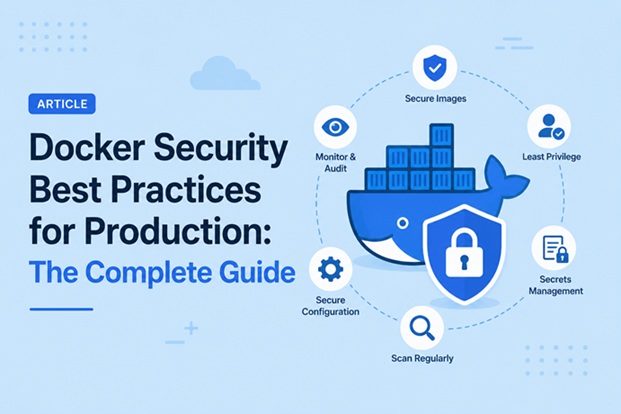
Docker has fundamentally changed the way modern applications are built, shipped, and deployed. With containerization now at the core of most production infrastructures — from startups to Fortune 500 enterprises — the security implications of running containers in production can no longer be an afterthought.
Table of Contents
- Introduction
- Why Docker Security Matters in Production
- 1. Use Minimal and Trusted Base Images
- 2. Scan Images for Vulnerabilities
- 3. Never Run Containers as Root
- 4. Use Read-Only Filesystems
- 5. Drop Unnecessary Linux Capabilities
- 6. Manage Secrets Properly
- 7. Implement Network Segmentation
- 8. Secure the Docker Daemon
- 9. Use AppArmor and Seccomp Profiles
- 10. Keep Images and Host Updated
- 11. Implement Logging and Runtime Monitoring
- 12. Apply the Principle of Least Privilege
- Docker Security Checklist Summary
- Conclusion
Introduction
This guide builds on the foundational practices covered in our Docker Security Best Practices for Production guide, going deeper into container-specific controls.
The flexibility that makes Docker so powerful also introduces a unique set of security risks. A misconfigured container, an outdated base image, or an exposed Docker socket can be the single entry point that brings down an entire production environment.
In this guide, we’ll walk through the essential Docker security best practices for production, covering everything from image hardening and runtime protection to network isolation and secrets management. Whether you’re a DevOps engineer, a cloud architect, or a security professional, these practices will help you build a defense-in-depth strategy around your containerized workloads.
Why Docker Security Matters in Production
Before diving into best practices, it’s important to understand the threat landscape. Unlike virtual machines, containers share the host kernel. This means that a container escape — where an attacker breaks out of a container and gains access to the host — can have catastrophic consequences.
Common Docker security threats include:
- Compromised base images containing malware or backdoors
- Privilege escalation via misconfigured containers running as root
- Container escape exploiting kernel vulnerabilities
- Exposed Docker daemon allowing unauthorized control of the host
- Hardcoded secrets in images or environment variables
- Unrestricted network access between containers
- Outdated dependencies with known CVEs
A proactive security posture addresses all of these vectors systematically.
1. Use Minimal and Trusted Base Images
Your container’s security starts with the base image. Using a bloated or unverified base image drastically increases your attack surface.
Use official or verified images
Always pull images from Docker Official Images or Docker Verified Publisher repositories on Docker Hub. These images are regularly scanned and maintained by trusted vendors.
# Good — official minimal image
FROM python:3.12-slim

# Avoid — unverified, unknown third-party image
FROM some-random-user/python-app
Prefer minimal base images
Minimal images contain only what your application needs. Popular choices include:
| Base Image | Size | Use Case |
alpine | ~5 MB | General-purpose minimal Linux |
distroless | ~2–20 MB | Statically compiled apps (Go, Java) |
scratch | 0 MB | Fully static binaries |
debian:slim | ~30 MB | Debian-based with reduced packages |
Fewer packages mean fewer vulnerabilities. A distroless image, for example, contains no shell — making it extremely difficult for an attacker to execute commands even if they gain access.
Pin image versions
Never use the latest tag in production. Always pin to a specific, immutable digest or version tag:
# Bad — unpredictable, could change anytime
FROM nginx:latest

# Good — pinned to a specific version
FROM nginx:1.25.3-alpine

# Best — pinned to immutable digest
FROM nginx@sha256:a3a61e4...
2. Scan Images for Vulnerabilities
Even official images can contain known vulnerabilities (CVEs). Integrate image scanning into your CI/CD pipeline to catch issues before they reach production.
Popular image scanning tools
- Trivy (by Aqua Security) — fast, comprehensive, and free
- Grype (by Anchore) — accurate CVE matching
- Docker Scout — built into Docker Desktop and CLI
- Snyk Container — developer-friendly with IDE integration
- Clair — open-source, designed for registry integration
Scanning with Trivy
# Install Trivy
sudo apt install trivy

# Scan a local image
trivy image nginx:1.25.3-alpine

# Scan and fail CI if HIGH or CRITICAL vulnerabilities are found
trivy image --exit-code 1 --severity HIGH,CRITICAL nginx:1.25.3-alpine
Automate scanning in CI/CD
Integrate image scanning as a mandatory gate in your pipeline. Only promote images that pass vulnerability thresholds:
# Example GitHub Actions step
- name: Scan Docker image
  uses: aquasecurity/trivy-action@master
  with:
    image-ref: 'myapp:${{ github.sha }}'
    format: 'table'
    exit-code: '1'
    severity: 'HIGH,CRITICAL'
For a deeper walkthrough of vulnerability scanning in practice, see our dedicated guide: Trivy Docker Security: How to Scan and Fix Container Vulnerabilities..
3. Never Run Containers as Root
By default, processes inside Docker containers run as root (UID 0). If an attacker exploits a vulnerability in your application, they inherit root privileges inside the container — and potentially on the host.
Create and use a non-root user
FROM node:20-alpine

# Create a non-root user and group
RUN addgroup -S appgroup && adduser -S appuser -G appgroup

# Set working directory
WORKDIR /app

# Copy application files
COPY --chown=appuser:appgroup . .

# Install dependencies
RUN npm ci --only=production

# Switch to non-root user
USER appuser

CMD ["node", "server.js"]
Enforce non-root at runtime
# Run container as specific UID
docker run --user 1001:1001 myapp:latest

# Prevent privilege escalation
docker run --security-opt no-new-privileges myapp:latest
In Kubernetes
securityContext:
  runAsNonRoot: true
  runAsUser: 1001
  allowPrivilegeEscalation: false
4. Use Read-Only Filesystems
If your application doesn’t need to write to its filesystem at runtime, mount the container’s root filesystem as read-only. This prevents attackers from modifying binaries, installing tools, or persisting backdoors.
docker run --read-only \
  --tmpfs /tmp \
  --tmpfs /var/run \
  myapp:latest
In Docker Compose:
services:
  web:
    image: myapp:latest
    read_only: true
    tmpfs:
      - /tmp
      - /var/run
Note: Use
--tmpfsto mount writable in-memory filesystems only for directories that genuinely require write access (e.g.,/tmp,/var/run).
5. Drop Unnecessary Linux Capabilities
Linux capabilities divide root privileges into distinct units. By default, Docker grants a set of capabilities that your application may not need. Dropping unused capabilities minimizes what an attacker can do if they compromise the container.
Drop all capabilities, then add only what’s needed
docker run \
  --cap-drop ALL \
  --cap-add NET_BIND_SERVICE \
  myapp:latest
In Docker Compose:
services:
  web:
    image: myapp:latest
    cap_drop:
      - ALL
    cap_add:
      - NET_BIND_SERVICE
Common capabilities to drop
| Capability | Why Drop It |
SYS_ADMIN | Extremely broad — allows many system operations |
NET_ADMIN | Network interface manipulation |
SYS_PTRACE | Process tracing/debugging |
SYS_MODULE | Kernel module loading |
DAC_OVERRIDE | Bypass file permission checks |
6. Manage Secrets Properly
Hardcoding sensitive information — API keys, database passwords, TLS certificates — directly into Docker images or environment variables is one of the most common and dangerous mistakes in container security.
Never do this
# DANGEROUS — secret baked into image layer
ENV DATABASE_PASSWORD=mysecretpassword123

# DANGEROUS — secret visible in docker history
RUN curl -H "Authorization: Bearer hardcoded-token" https://api.example.com
Use Docker Secrets (Docker Swarm)
Docker Swarm provides a built-in secrets management mechanism:
# Create a secret
echo "mysecretpassword" | docker secret create db_password -

# Use it in a service
docker service create \
  --secret db_password \
  --env DB_PASSWORD_FILE=/run/secrets/db_password \
  myapp:latest
Use external secret managers
For production Kubernetes or standalone Docker deployments, integrate with dedicated secret management solutions:
- HashiCorp Vault — enterprise-grade secrets engine
- AWS Secrets Manager — native AWS integration
- Azure Key Vault — for Azure workloads
- GCP Secret Manager — for Google Cloud workloads
Use .dockerignore to protect local secrets
# .dockerignore
.env
*.pem
*.key
secrets/
.aws/
.ssh/
Scan for secrets in images
# Using Trivy to detect secrets
trivy image --scanners secret myapp:latest

# Using Gitleaks for repository scanning
gitleaks detect --source .
7. Implement Network Segmentation
By default, all containers on the same Docker host can communicate with each other via the default bridge network. In production, containers should only be able to communicate with the services they explicitly need.
Create isolated user-defined networks
# Create separate networks
docker network create frontend-net
docker network create backend-net

# Attach containers to specific networks only
docker run --network frontend-net nginx:alpine
docker run --network backend-net postgres:16-alpine
Use network policies in Docker Compose
version: "3.9"
services:
  web:
    image: nginx:alpine
    networks:
      - frontend

  api:
    image: myapi:latest
    networks:
      - frontend
      - backend

  db:
    image: postgres:16-alpine
    networks:
      - backend

networks:
  frontend:
  backend:
In this setup, the web container cannot directly reach the db container — traffic must flow through api.
Disable inter-container communication on default bridge
# In /etc/docker/daemon.json
{
  "icc": false
}
If you’re running multi-container applications with Compose, check our Docker Compose Security: Complete Hardening Guide for 2026 for Compose-specific hardening steps.
8. Secure the Docker Daemon
The Docker daemon (dockerd) runs with root privileges. Access to the Docker socket (/var/run/docker.sock) is equivalent to root access on the host. Securing the daemon itself is critical.
Never expose the Docker socket to containers
# EXTREMELY DANGEROUS — gives container full host access
docker run -v /var/run/docker.sock:/var/run/docker.sock myapp

# Use Docker-in-Docker alternatives like Kaniko for CI/CD build tasks
Enable TLS for remote Docker API access
If you must expose the Docker API remotely, always use mutual TLS:
# Generate CA, server, and client certificates, then start daemon with:
dockerd \
  --tlsverify \
  --tlscacert=ca.pem \
  --tlscert=server-cert.pem \
  --tlskey=server-key.pem \
  -H=0.0.0.0:2376
Restrict daemon configuration
Edit /etc/docker/daemon.json:
{
  "icc": false,
  "no-new-privileges": true,
  "log-driver": "json-file",
  "log-opts": {
    "max-size": "10m",
    "max-file": "3"
  },
  "userns-remap": "default"
}
Key settings explained:
icc: false— disables inter-container communication on default bridgeno-new-privileges: true— prevents privilege escalation globallyuserns-remap— maps container root to an unprivileged host user
Daemon-level hardening is just one layer — for a complete host-level lockdown, see Secure Docker Host: Complete Hardening Guide for 2026.
9. Use AppArmor and Seccomp Profiles
Linux security modules provide an additional layer of defense by restricting what system calls a container can make.
Seccomp (Secure Computing Mode)
Seccomp limits the Linux kernel system calls available to a container. Docker applies a default seccomp profile, but you can customize it for stricter control:
docker run \
  --security-opt seccomp=/path/to/custom-seccomp.json \
  myapp:latest
For highly sensitive workloads, use seccomp=unconfined only when absolutely necessary and document the reason.
AppArmor
AppArmor enforces mandatory access control policies at the kernel level:
# Apply a custom AppArmor profile
docker run \
  --security-opt apparmor=docker-default \
  myapp:latest
Load a custom AppArmor profile:
apparmor_parser -r -W /etc/apparmor.d/docker-custom
docker run --security-opt apparmor=docker-custom myapp:latest
10. Keep Images and Host Updated
Patching is not glamorous, but it is one of the most effective security controls available.
Regularly rebuild images
Don’t treat container images as immutable artifacts that never need updating. Rebuild them regularly to incorporate:
- OS package security patches
- Updated application dependencies
- New base image releases
# Rebuild without cache to pick up latest package versions
docker build --no-cache -t myapp:$(date +%Y%m%d) .
Automate dependency updates
Use tools like Dependabot, Renovate, or Snyk to automatically open pull requests when base images or dependencies have new versions.
Keep the Docker Engine updated
sudo apt update && sudo apt upgrade docker-ce docker-ce-cli containerd.io -yMonitor for new CVEs
Subscribe to security advisories for:
- Your base OS (Ubuntu, Debian, Alpine)
- Your runtime (Node.js, Python, JVM)
- Docker Engine itself (https://docs.docker.com/engine/release-notes/)
11. Implement Logging and Runtime Monitoring
Security is not just about prevention — detection and response are equally important. Implement robust logging and monitoring for your containerized workloads.
Configure structured container logging
docker run \
  --log-driver json-file \
  --log-opt max-size=10m \
  --log-opt max-file=3 \
  myapp:latest
Runtime security tools
| Tool | Type | Key Feature |
| Falco | Runtime threat detection | Detects anomalous syscall behavior |
| Sysdig | Monitoring & security | Deep container visibility |
| Aqua Security | Full lifecycle | Image scanning + runtime protection |
| Twistlock/Prisma Cloud | Enterprise | Compliance + threat intelligence |
| Datadog Security | Cloud-native | APM + security monitoring |
Example: Deploying Falco
helm install falco falcosecurity/falco \
  --set falco.grpc.enabled=true \
  --set falco.grpcOutput.enabled=true
Falco can alert you in real time when a container:
- Reads sensitive files like
/etc/shadow - Spawns an unexpected shell
- Makes unexpected outbound network connections
- Modifies binary directories
12. Apply the Principle of Least Privilege
Across all the practices above, the unifying philosophy is the Principle of Least Privilege (PoLP): every container, process, and user should have access to only what it strictly needs to perform its function — nothing more.
A practical checklist:
- [ ] Container runs as non-root user
- [ ] Read-only filesystem where possible
- [ ] Minimal Linux capabilities (
--cap-drop ALL) - [ ] Network access restricted to necessary services only
- [ ] No access to Docker socket
- [ ] Secrets injected at runtime, not baked into images
- [ ] Resource limits set (
--memory,--cpus) - [ ] No privileged mode (
--privileged)
Set resource limits
Prevent a single container from consuming all host resources (denial-of-service scenario):
docker run \
  --memory="512m" \
  --memory-swap="512m" \
  --cpus="0.5" \
  --pids-limit 100 \
  myapp:latest
Docker Security Checklist Summary
| # | Container Security Best Practice | Priority |
|---|---|---|
| 1 | Use minimal, trusted, and cryptographically verified base images to reduce the attack surface. | 🔴 Critical |
| 2 | Automatically scan container images for known vulnerabilities (CVEs) during every CI/CD pipeline execution. | 🔴 Critical |
| 3 | Run all containers as non-root users to minimize privilege escalation risks. | 🔴 Critical |
| 4 | Mount container filesystems as read-only whenever possible to prevent unauthorized modifications. | 🟠 High |
| 5 | Drop all unnecessary Linux capabilities and grant only those explicitly required by the application. | 🟠 High |
| 6 | Store sensitive credentials using Docker Secrets, HashiCorp Vault, or a cloud-native secret management solution. | 🔴 Critical |
| 7 | Isolate workloads using dedicated Docker networks and restrict unnecessary inter-container communication. | 🟠 High |
| 8 | Protect the Docker daemon and never expose the Docker socket to untrusted containers or external users. | 🔴 Critical |
| 9 | Apply Seccomp and AppArmor (or SELinux) profiles to restrict system calls and container privileges. | 🟡 Medium |
| 10 | Keep container images, base operating systems, and Docker hosts updated with the latest security patches. | 🟠 High |
| 11 | Enable centralized logging and runtime security monitoring using tools such as Falco, Prometheus, or SIEM platforms. | 🟠 High |
| 12 | Enforce the Principle of Least Privilege (PoLP) across containers, users, services, and infrastructure components. | 🔴 Critical |
Related Docker Security Guides
This guide covers the foundational practices for securing Docker in production. For deeper dives into specific scenarios, explore Docker Container Security Best Practices and Docker in Docker Security: Risks, Alternatives, and Safe Implementation Guide 2026.
Conclusion
Docker security in production is not a single switch you flip — it is a layered, continuous discipline. The best practice is always defense-in-depth: multiple overlapping controls so that no single failure point leads to a catastrophic breach.
To recap the key takeaways:
- Start secure — minimal base images, pinned versions, no root
- Scan everything — integrate vulnerability scanning into your pipeline
- Isolate aggressively — networks, filesystems, capabilities
- Protect secrets — never hardcode, always use a vault
- Monitor actively — logging, alerting, and runtime threat detection
- Keep patching — rebuild images regularly and update dependencies
Implementing even a subset of these practices will dramatically improve your container security posture and reduce the risk of a production incident.
Stay vigilant, stay patched — and happy containerizing! 🐳🔒
Related posts:
 Docker Container Security Best Practices: A Comprehensive Guide
 Kubernetes Network Policies Explained: Secure Pod-to-Pod Communication (2026 Guide)
 How To Install Docker On Ubuntu 22.04
 How To Install Docker On OpenSUSE Tumbleweed
 Linux Open Port: Managing Firewall Ports Step-by-Step Guide
How to Install Docker on Ubuntu 24.04 LTS (Step-by-Step Beginner Guide)
Linux Open Port: Managing Firewall Ports Step-by-Step Guide
How to Install Docker on Ubuntu 24.04 LTS (Step-by-Step Beginner Guide)
 Docker Network Security: A Complete Guide to Securing Container Communication in 2026
 How to Back Up and Restore Kubernetes Cluster Using Velero (2026 Guide)
