PowerShell Automation Scripts: Practical Examples for IT Sysadmins

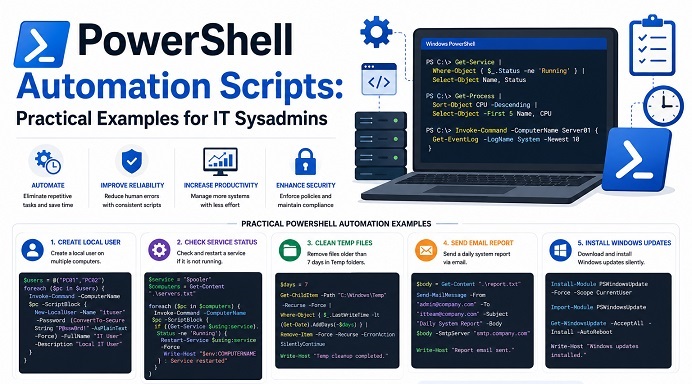
Table of Contents
- What “Automation” Actually Requires
- Foundation: Scheduling a Script with Task Scheduler
- Bulk User Creation from a CSV File
- Automated Backup Script on a Schedule
- Event Log Monitoring and Alerting
- Service Health Check and Auto-Restart
- Secure Credential Handling for Unattended Scripts
- Error Handling and Logging Every Script Needs
- Common Pitfalls
- Where to Go Next
Knowing PowerShell cmdlets is one skill. Turning them into something that runs unattended, every day, without you babysitting it, is a different one. This guide skips the conceptual overview and goes straight to the scripts sysadmins actually run in production — scheduled tasks, bulk provisioning, backups, monitoring, and the credential-handling and error-handling patterns that make a script safe to leave running while you’re not watching it.
What “Automation” Actually Requires
A script that works when you run it manually isn’t automated yet. Real automation needs four things working together:
- A trigger — something that starts the script without you (a schedule, an event, a webhook).
- Error handling — the script needs to fail safely and tell you when it does, since no one is watching it run.
- Credential handling — unattended scripts can’t prompt for a password, so credentials need a secure non-interactive path.
- Logging — a record of what happened, because by the time you notice something went wrong, the script already ran and finished.
Every example below builds on this same structure.
Foundation: Scheduling a Script with Task Scheduler
Almost every automation pattern in this guide eventually needs a trigger, and on Windows that’s usually Task Scheduler — configured through PowerShell instead of the GUI, so the setup itself is repeatable and scriptable:
# Create-ScheduledScript.ps1
$action = New-ScheduledTaskAction -Execute "PowerShell.exe" `
    -Argument '-NoProfile -ExecutionPolicy Bypass -File "C:\Scripts\DailyMaintenance.ps1"'

$trigger = New-ScheduledTaskTrigger -Daily -At "3:00AM"

$settings = New-ScheduledTaskSettingsSet `
    -StartWhenAvailable `
    -DontStopOnIdleEnd `
    -RestartCount 3 `
    -RestartInterval (New-TimeSpan -Minutes 5)

Register-ScheduledTask -TaskName "DailyMaintenance" `
    -Action $action `
    -Trigger $trigger `
    -Settings $settings `
    -User "SYSTEM" `
    -RunLevel Highest `
    -Description "Runs daily maintenance script at 3 AM"
A few details that matter more than they look:
-NoProfileskips loading the PowerShell profile, which avoids the task silently picking up unrelated customizations from a user profile that may not even be loaded underSYSTEM.-ExecutionPolicy Bypassapplies only to this single invocation — it doesn’t change the system-wide execution policy, which is the safer way to run a signed/trusted script without weakening policy everywhere else.RestartCount/RestartIntervalgive the task a retry budget if it fails — useful for scripts that depend on a network resource that might be briefly unavailable at 3 AM.- Running as
SYSTEMis convenient but has no network identity; if the script needs to reach another server with Windows authentication, a dedicated service account is usually the better choice — see the credential handling section below.
Bulk User Creation from a CSV File
A common onboarding task: HR drops a CSV, and dozens of Active Directory accounts need to exist by morning.
# New-UsersFromCsv.ps1
param(
    [Parameter(Mandatory)]
    [string]$CsvPath,
    [string]$LogPath = "C:\Logs\UserCreation.log"
)

Import-Module ActiveDirectory

$users = Import-Csv -Path $CsvPath
$results = foreach ($user in $users) {
    try {
        $password = ConvertTo-SecureString $user.InitialPassword -AsPlainText -Force

        New-ADUser `
            -Name "$($user.FirstName) $($user.LastName)" `
            -GivenName $user.FirstName `
            -Surname $user.LastName `
            -SamAccountName $user.Username `
            -UserPrincipalName "$($user.Username)@company.com" `
            -Path $user.OUPath `
            -AccountPassword $password `
            -Enabled $true `
            -ChangePasswordAtLogon $true `
            -ErrorAction Stop

        Add-ADGroupMember -Identity $user.GroupName -Members $user.Username -ErrorAction Stop

        [PSCustomObject]@{ Username = $user.Username; Status = "Success"; Error = "" }
    }
    catch {
        [PSCustomObject]@{ Username = $user.Username; Status = "Failed"; Error = $_.Exception.Message }
    }
}

$results | Export-Csv -Path $LogPath -NoTypeInformation -Append
$failed = $results | Where-Object Status -eq "Failed"
if ($failed) {
    Write-Warning "$($failed.Count) account(s) failed. See $LogPath for details."
}
The expected CSV columns: FirstName, LastName, Username, InitialPassword, OUPath, GroupName. Processing each row inside its own try/catch is the detail that matters most here — without it, one bad row (a duplicate username, an invalid OU path) stops the entire batch instead of just logging that one failure and continuing with the rest.
Automated Backup Script on a Schedule
A straightforward file backup with timestamped archives and automatic cleanup of old backups:
# Backup-Directory.ps1
param(
    [string]$SourcePath = "C:\ImportantData",
    [string]$BackupRoot = "D:\Backups",
    [int]$RetentionDays = 30
)

$timestamp = Get-Date -Format "yyyyMMdd-HHmmss"
$destination = Join-Path $BackupRoot "Backup-$timestamp.zip"

try {
    Compress-Archive -Path $SourcePath -DestinationPath $destination -ErrorAction Stop
    Write-Output "Backup created: $destination"

    # Remove backups older than the retention period
    Get-ChildItem -Path $BackupRoot -Filter "Backup-*.zip" |
        Where-Object { $_.LastWriteTime -lt (Get-Date).AddDays(-$RetentionDays) } |
        Remove-Item -Force

    Write-Output "Cleanup complete: removed backups older than $RetentionDays days"
}
catch {
    Write-Error "Backup failed: $($_.Exception.Message)"
    exit 1
}
This pattern — compress, timestamp, then prune anything past a retention window — is intentionally simple, but it’s the same shape used for database dumps. If you’re backing up MongoDB or Redis running in Docker rather than flat files, the compression step changes but the retention and scheduling logic stays identical.
Event Log Monitoring and Alerting
Checking for specific security or system events and sending a notification when they appear:
# Monitor-EventLog.ps1
param(
    [string]$LogName = "Security",
    [int]$EventID = 4625,  # Failed logon
    [int]$LookbackMinutes = 15,
    [string]$AlertEmail = "soc-team@company.com"
)

$startTime = (Get-Date).AddMinutes(-$LookbackMinutes)

$events = Get-WinEvent -FilterHashtable @{
    LogName   = $LogName
    Id        = $EventID
    StartTime = $startTime
} -ErrorAction SilentlyContinue

if ($events) {
    $count = $events.Count
    $summary = $events | Group-Object { $_.Properties[5].Value } |
        Select-Object Name, Count |
        Sort-Object Count -Descending

    $body = "Detected $count failed logon attempt(s) in the last $LookbackMinutes minutes.`n`n" +
            ($summary | Format-Table -AutoSize | Out-String)

    Send-MailMessage -To $AlertEmail -From "alerts@company.com" `
        -Subject "Security Alert: $count Failed Logons Detected" `
        -Body $body -SmtpServer "smtp.company.com"
}
Get-WinEvent with -FilterHashtable is significantly faster than the older Get-EventLog cmdlet on large logs, since the filtering happens at the provider level instead of pulling every event into memory first. This script is built to run every 15 minutes via Task Scheduler, checking only the window since its last run.
Service Health Check and Auto-Restart
For services that occasionally stop and need to be brought back up without a human noticing first:
# Watch-CriticalServices.ps1
param(
    [string[]]$ServiceNames = @("MSSQLSERVER", "W3SVC", "MyAppService"),
    [string]$LogPath = "C:\Logs\ServiceWatchdog.log"
)

foreach ($name in $ServiceNames) {
    $service = Get-Service -Name $name -ErrorAction SilentlyContinue

    if (-not $service) {
        "$(Get-Date) - WARNING - Service '$name' not found" | Out-File -Append $LogPath
        continue
    }

    if ($service.Status -ne 'Running') {
        try {
            Start-Service -Name $name -ErrorAction Stop
            "$(Get-Date) - INFO - Restarted service '$name'" | Out-File -Append $LogPath
        }
        catch {
            "$(Get-Date) - ERROR - Failed to restart '$name': $($_.Exception.Message)" | Out-File -Append $LogPath
        }
    }
}
Run this every five minutes for a lightweight watchdog. For anything beyond a handful of services, dedicated monitoring tools are a better fit — this script is meant for small environments where standing up a full monitoring stack isn’t justified yet.
Secure Credential Handling for Unattended Scripts
Hardcoding a password in a .ps1 file is the single most common security mistake in automation scripts — it sits in plain text, gets picked up by version control if you’re not careful, and is readable by anyone with file access. PowerShell’s SecretManagement module solves this properly:
# One-time setup
Install-Module Microsoft.PowerShell.SecretManagement -Scope CurrentUser
Install-Module Microsoft.PowerShell.SecretStore -Scope CurrentUser
Register-SecretVault -Name LocalVault -ModuleName Microsoft.PowerShell.SecretStore -DefaultVault

# Store a credential once
Set-Secret -Name "ServiceAccountPassword" -Secret (Read-Host -AsSecureString "Enter password")
Then, inside any automation script, retrieve it without ever typing the password again:
$securePassword = Get-Secret -Name "ServiceAccountPassword"
$credential = New-Object System.Management.Automation.PSCredential("DOMAIN\svc-automation", $securePassword)

Invoke-Command -ComputerName "Server01" -Credential $credential -ScriptBlock {
    Get-Service -Name "MyAppService"
}
For environments already using a centralized secrets manager — Azure Key Vault is the common case — SecretManagement also supports vault extensions that pull from there instead of a local store, which is the better option once more than one machine needs access to the same credential.
Error Handling and Logging Every Script Needs
Every script above already uses this pattern, but it’s worth calling out on its own: try/catch with -ErrorAction Stop, not the default error behavior.
try {
    Get-Service -Name "NonexistentService" -ErrorAction Stop
}
catch {
    Write-Output "Caught error: $($_.Exception.Message)"
    # Log it, send an alert, or exit with a non-zero code so a calling process knows it failed
    exit 1
}
By default, most cmdlet errors are non-terminating — PowerShell logs the error and keeps going to the next line, which means a catch block never triggers unless you explicitly set -ErrorAction Stop on the command that might fail. This is the most common reason a script’s error handling silently does nothing: the try/catch is there, but the error inside it was never terminating in the first place.
Common Pitfalls
| Pitfall | Why It Bites | Fix |
|---|---|---|
| Script works manually, fails as scheduled task | Runs as a different user/profile and has no console available for prompts. | Use -NoProfile, avoid Read-Host, and test using the same account configured for the scheduled task. |
try/catch never catches anything | The cmdlet generated a non-terminating error. | Add -ErrorAction Stop to commands inside the try block. |
| Hardcoded password in script file | Credentials are exposed in plain text and can be easily compromised. | Use PowerShell SecretManagement, SecretStore, or an enterprise vault solution. |
| Task runs but script silently does nothing | The execution policy is preventing the script from running. | Configure the scheduled task to use -ExecutionPolicy Bypass instead of changing the system-wide execution policy. |
| Script breaks after a Windows update | Module paths or cmdlet behavior changed between PowerShell versions. | Pin module versions and validate scripts on PowerShell 7+ before relying on version-specific functionality. |
Where to Go Next
These scripts assume familiarity with PowerShell’s basics — cmdlets, the object pipeline, and execution policy. If any of that needs a refresher first, our PowerShell: A Complete Guide to Automation and Task Management for IT Professionals guide covers the foundational concepts this article builds directly on top of.
From here, the same trigger-plus-error-handling-plus-credential pattern extends to almost anything you need to automate: certificate renewal checks, disk space alerts, bulk software deployment, or cloud resource provisioning with Azure PowerShell. Start with whichever task currently eats the most manual time, automate that one first, and the pattern gets easier to reuse on the next one.
Related posts:
 PowerShell: A Complete Guide to Automation and Task Management for IT Professionals
 Changing Hostname on Rocky Linux 8
 How to Change Hostname on CentOS 7
How to Use Telnet in Linux for Network Troubleshooting (Complete Guide)Exploring Telnet: An Overview and Usage Guide
How to Change Hostname on CentOS 7
How to Use Telnet in Linux for Network Troubleshooting (Complete Guide)Exploring Telnet: An Overview and Usage Guide
 Changing Hostname On OpenSUSE
How To Clear the APT Cache and Free Up Disk Space on Ubuntu 24.04
Changing Hostname On OpenSUSE
How To Clear the APT Cache and Free Up Disk Space on Ubuntu 24.04
 How To Expand Ubuntu 24.04 LTS File System Volume On VM Ware
 20 systemctl Command Line Examples for System and Service Management
