firewalld on Rocky Linux 10: Zones, Rich Rules & Real-World Recipes

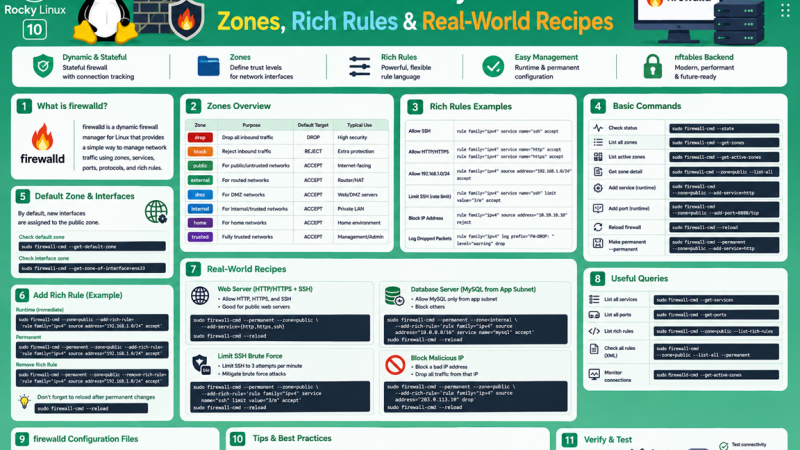
Rocky Linux 10 ships with firewalld enabled by default. It is the standard way to manage the host firewall across the RHEL family, and it now drives the kernel’s nftables framework underneath. You rarely need to write nftables rules by hand, but you do need to understand zones, services, the runtime/permanent split, and rich rules.
This guide goes from the basics to practical recipes you can paste into your own servers: opening ports safely, restricting access by source subnet, port forwarding, blocking an address, logging, and the Docker caveat that surprises many administrators.
Table of Contents
- How firewalld works
- Check the service and the default zone
- Runtime vs permanent configuration
- Zones explained
- Services and ports
- Restricting access by source
- Rich rules
- Port forwarding and masquerading
- Blocking and rate limiting
- Logging denied packets
- Custom services
- Recipes for common servers
- Docker and Kubernetes caveats
- Backup, review and safe changes
- Troubleshooting
- FAQ
1. How firewalld works
 Incoming packet
       |
       v
 +-----------------------+     +-----------------------------------+
 | nftables (kernel)     | <-- | firewalld daemon (firewalld.service)
 | rules generated by    |     |   zones + services + rich rules   |
 | firewalld             |     |   runtime config | permanent config
 +-----------+-----------+     +-----------------------------------+
             |                             ^
             v                             |
 Is the source address or interface        |  firewall-cmd (CLI)
 assigned to a zone? --> zone's rules      |  cockpit / firewall-config (GUI)
decide: accept, reject, drop| Concept | Meaning |
|---|---|
| Zone | A trust level with its own rules (for example public, internal, trusted) |
| Service | A named set of ports and protocols (ssh, http, postgresql) |
| Rich rule | A flexible rule with source, destination, logging, and rate limits |
| Runtime | What is active right now; lost on reload or reboot |
| Permanent | What is saved to disk and loaded at boot |
2. Check the service and the default zone
sudo systemctl status firewalld --no-pager
sudo firewall-cmd --state
sudo firewall-cmd --get-default-zone
sudo firewall-cmd --get-active-zones
sudo firewall-cmd --list-all
On a default Rocky Linux installation the default zone is typically public with ssh allowed and everything else rejected. If firewalld is not running:
sudo systemctl enable --now firewalldDo not disable firewalld to “make it work.” If a service is unreachable, find the exact rule that is missing. Disabling the firewall removes a layer you will want later.
3. Runtime vs permanent configuration
The most common mistake: adding a rule without --permanent, then losing it on reboot or reload.
| Command pattern | Effect |
|---|---|
firewall-cmd --add-service=http | Active now, lost on reload/reboot |
firewall-cmd --permanent --add-service=http | Saved, not active until reload |
firewall-cmd --permanent --add-service=http && firewall-cmd --reload | Saved and active (recommended) |
firewall-cmd --runtime-to-permanent | Saves the current runtime config to disk |
A safe workflow for risky changes: apply at runtime first, test, and then save.
sudo firewall-cmd --add-port=8080/tcp          # runtime only
# test from another host, then:
sudo firewall-cmd --runtime-to-permanent       # keep it
# or revert instantly:
sudo firewall-cmd --reload                     # drops unsaved runtime changes
This is especially useful on remote servers: a mistake that locks you out disappears after a reload or reboot if you never saved it. Keep a second session open while you change SSH rules.
4. Zones explained
| Zone | Default behavior | Typical use |
|---|---|---|
drop | Silently drops all incoming | Hostile networks |
block | Rejects incoming with a message | Hostile networks, polite rejection |
public | Allows only selected services (default: ssh) | Internet-facing interfaces |
external | Like public, with masquerading for routers | NAT gateways |
dmz | Limited access to the internal network | Servers in a DMZ |
work | Mostly trusted office network | Workstations |
home | Trusted home network | Home servers |
internal | Trusted internal network | Private LAN interfaces |
trusted | Allows everything | Use sparingly, usually by source address |
Assign an interface or a source network to a zone:
# Interface to zone
sudo firewall-cmd --permanent --zone=internal --change-interface=ens224

# Source network to zone (traffic from this subnet is evaluated in 'internal')
sudo firewall-cmd --permanent --zone=internal --add-source=192.168.10.0/24
sudo firewall-cmd --reload

# Inspect one zone, or all of them
sudo firewall-cmd --zone=internal --list-all
sudo firewall-cmd --list-all-zones | less
Pattern for a typical server: keep the public interface in public with only the ports you want exposed, and put your management subnet in internal with SSH and monitoring ports.
5. Services and ports
Services are easier to read and maintain than raw port numbers.
# List available services and see what one contains
sudo firewall-cmd --get-services | tr ' ' '\n' | head -50
sudo firewall-cmd --info-service=postgresql

# Add and remove services
sudo firewall-cmd --permanent --add-service=http
sudo firewall-cmd --permanent --add-service=https
sudo firewall-cmd --permanent --remove-service=cockpit      # if you do not need the web console
sudo firewall-cmd --reload
For ports with no predefined service:
sudo firewall-cmd --permanent --add-port=8080/tcp
sudo firewall-cmd --permanent --add-port=3000-3010/tcp      # a range
sudo firewall-cmd --permanent --add-port=51820/udp
sudo firewall-cmd --reload
sudo firewall-cmd --list-ports
Remove what you no longer use:
sudo firewall-cmd --permanent --remove-port=8080/tcp
sudo firewall-cmd --reload
6. Restricting access by source
A database or admin port should rarely be open to the world. Three ways to limit it:
A. Zone with a source (broad, simple): put the trusted subnet into a zone that allows the service, as shown above.
B. Rich rule (precise, per service):
sudo firewall-cmd --permanent --add-rich-rule='rule family="ipv4" source address="192.168.10.0/24" service name="postgresql" accept'
sudo firewall-cmd --reload
C. A dedicated zone for one purpose:
sudo firewall-cmd --permanent --new-zone=dbclients
sudo firewall-cmd --permanent --zone=dbclients --add-source=192.168.10.0/24
sudo firewall-cmd --permanent --zone=dbclients --add-service=postgresql
sudo firewall-cmd --reload
Make sure the service is not also allowed in the public zone, or the restriction is pointless. Verify with firewall-cmd --list-all-zones.
7. Rich rules
Rich rules use a readable syntax and allow conditions that simple service/port rules cannot express.
# Allow SSH only from the admin subnet
sudo firewall-cmd --permanent --add-rich-rule='rule family="ipv4" source address="10.0.0.0/24" service name="ssh" accept'

# Allow a specific port from one host
sudo firewall-cmd --permanent --add-rich-rule='rule family="ipv4" source address="192.168.10.25" port port="9100" protocol="tcp" accept'

# Reject with a message from a given address
sudo firewall-cmd --permanent --add-rich-rule='rule family="ipv4" source address="203.0.113.50" reject'

# List and remove
sudo firewall-cmd --list-rich-rules
sudo firewall-cmd --permanent --remove-rich-rule='rule family="ipv4" source address="203.0.113.50" reject'

sudo firewall-cmd --reload
Remove-by-exact-text rule: to delete a rich rule, copy it exactly as --list-rich-rules prints it. A single character difference means “rule not found”.
To lock SSH down to the admin subnet, add the rich rule first, confirm you can still log in from that subnet, and only then remove the general ssh service:
sudo firewall-cmd --permanent --remove-service=ssh
sudo firewall-cmd --reload
8. Port forwarding and masquerading
Forward a port on the same host (for example, 80 to an application listening on 8080):
sudo firewall-cmd --permanent --add-forward-port=port=80:proto=tcp:toport=8080
sudo firewall-cmd --reload
Forward to another host requires masquerading and IP forwarding:
sudo firewall-cmd --permanent --add-masquerade
sudo firewall-cmd --permanent --add-forward-port=port=8443:proto=tcp:toport=443:toaddr=192.168.10.50
sudo firewall-cmd --reload
For a router or gateway that forwards between interfaces, assign the outside interface to external (which masquerades) and the inside to internal.
Port forwarding changes traffic paths. Document every forward you create, because they are easy to forget and hard to debug later.
9. Blocking and rate limiting
Block an address or range quickly using the drop zone:
sudo firewall-cmd --permanent --zone=drop --add-source=203.0.113.0/24
sudo firewall-cmd --reload
Rate limit new SSH connections with a rich rule:
sudo firewall-cmd --permanent --add-rich-rule='rule family="ipv4" service name="ssh" limit value="10/m" accept'
sudo firewall-cmd --reload
Rate limiting is blunt. For real brute-force protection use key-based SSH, disable password login, and add fail2ban where appropriate.
10. Logging denied packets
Turn on logging for denied traffic while you debug, then switch it back off to avoid filling your logs.
sudo firewall-cmd --get-log-denied
sudo firewall-cmd --set-log-denied=all        # all | unicast | broadcast | multicast | off
sudo journalctl -k -f | grep -i -E 'filter_IN|REJECT|DROP'
sudo firewall-cmd --set-log-denied=off
You can also log matches of a specific rich rule:
sudo firewall-cmd --permanent --add-rich-rule='rule family="ipv4" source address="203.0.113.50" log prefix="BLOCKED " level="warning" limit value="5/m" drop'
sudo firewall-cmd --reload
11. Custom services
Make your own service definition for an application port set, so rules stay readable.
sudo firewall-cmd --permanent --new-service=myapp
sudo firewall-cmd --permanent --service=myapp --set-description="My application"
sudo firewall-cmd --permanent --service=myapp --add-port=8080/tcp
sudo firewall-cmd --permanent --service=myapp --add-port=8081/tcp
sudo firewall-cmd --reload

sudo firewall-cmd --permanent --add-service=myapp
sudo firewall-cmd --reload
Custom service files live in /etc/firewalld/services/, which is convenient for configuration management tools.
12. Recipes for common servers
| Server role | Ports | Commands (permanent, then reload) |
|---|---|---|
| Web server | 80, 443 | --add-service=http --add-service=https |
| SSH admin only from a subnet | 22 | Rich rule with source address= then remove the open ssh service |
| PostgreSQL | 5432 | Rich rule with source subnet and service name="postgresql" (see PostgreSQL on Rocky Linux 10.2) |
| FreeRADIUS | UDP 1812, 1813 | --add-service=radius or a source-limited rich rule (see FreeRADIUS on Rocky Linux 10) |
| Prometheus node exporter | 9100 | Rich rule from the Prometheus server address only |
| NFS server | several | --add-service=nfs (add mountd and rpc-bind as needed) |
| Kubernetes node | 6443, 10250, and more | Open only the ports your role needs; see Kubernetes on Rocky Linux 10 with kubeadm |
| Reverse proxy for apps | 80, 443 | http and https only; keep app ports (5678, 3000…) unexposed. See Nginx with Let’s Encrypt |
Example, a web server with SSH limited to an admin subnet:
sudo firewall-cmd --permanent --add-service=http --add-service=https
sudo firewall-cmd --permanent --add-rich-rule='rule family="ipv4" source address="10.0.0.0/24" service name="ssh" accept'
sudo firewall-cmd --permanent --remove-service=ssh
sudo firewall-cmd --reload
sudo firewall-cmd --list-all
13. Docker and Kubernetes caveats
Docker. Docker programs its own network rules to publish container ports. As a result, a published port such as -p 6379:6379 can be reachable even if you never opened it in firewalld, because Docker’s rules take effect before your zone rules apply to that traffic. Protect yourself in three ways:
- Publish only to loopback:
-p 127.0.0.1:6379:6379, or127.0.0.1:in Composeports:. - Do not publish ports that only other containers need; use a Docker network.
- Verify from another machine with
nmaporcurlrather than trustingfirewall-cmd --list-all.
See Docker Redis Compose Guide and Docker on Rocky Linux 10 with SELinux.
Kubernetes. The CNI and kube-proxy manage their own rules too. Do not flush rules or restart firewalld blindly on a node in a running cluster; plan changes and test on one node first.
14. Backup, review and safe changes
# Back up the configuration
sudo tar czf ~/firewalld-backup-$(date +%F).tgz /etc/firewalld/

# Review what is permanently configured
sudo firewall-cmd --permanent --list-all
sudo firewall-cmd --permanent --list-all-zones | less

# Compare runtime and permanent
diff <(sudo firewall-cmd --list-all) <(sudo firewall-cmd --permanent --list-all)

# Validate the saved configuration
sudo firewall-cmd --check-config
Habits that prevent outages:
- Keep a second SSH session open while you edit access rules.
- Prefer runtime changes first, then
--runtime-to-permanent. - Use services or custom services over raw ports for readability.
- Store
/etc/firewalld/in your configuration management or Git. - Test from a client machine after each change.
15. Troubleshooting
| Symptom | Likely cause | Fix |
|---|---|---|
| Rule works, then disappears after reboot | Added without --permanent | Re-add with --permanent and reload, or --runtime-to-permanent |
Rule added with --permanent has no effect | Not reloaded | sudo firewall-cmd --reload |
Error: INVALID_SERVICE | Typo or service not defined | firewall-cmd --get-services; create a custom service |
Error: ALREADY_ENABLED | Rule exists | Harmless; verify with --list-all |
| Cannot reach a service although the port is open | The service is not listening, listening on localhost, or wrong zone | ss -ltnp; check --get-active-zones; check the interface’s zone |
| Port open to everyone even though restricted | Service also allowed in public zone | --list-all-zones; remove it from the wider zone |
| Rich rule cannot be removed | Text differs from stored rule | Copy exactly from --list-rich-rules |
| Locked out of SSH | Removed ssh before source rule worked | Use console access; firewall-cmd --reload if the change was runtime-only |
| Docker container port reachable despite firewall | Docker’s own rules | Publish to 127.0.0.1 or avoid publishing |
| After a firewalld restart, containers lose connectivity | Docker/CNI rules flushed | Restart Docker or the CNI pods; avoid restarts on live nodes |
| Port forward does not work | Missing masquerade, forwarding disabled, or service not listening on target | Check --list-all, sysctl net.ipv4.ip_forward, target listener |
| Service blocked but nothing in firewall logs | SELinux, not firewalld | Check ausearch -m avc; see SELinux troubleshooting |
FirewallD is not running | Service stopped or masked | systemctl unmask firewalld; systemctl enable --now firewalld |
A quick diagnosis sequence when “the port is blocked”:
ss -ltnp | grep :PORT                     # is anything listening, and on which address?
sudo firewall-cmd --list-all              # is the port or service allowed in the active zone?
sudo firewall-cmd --get-active-zones      # which zone applies to the interface or source?
sudo firewall-cmd --set-log-denied=all    # does the firewall drop it?
sudo ausearch -m avc -ts recent           # or is SELinux denying it?
16. FAQ
Does Rocky Linux 10 use iptables or nftables?
firewalld uses the nftables framework in the kernel. You manage rules with firewall-cmd; you normally do not edit nftables directly.
Should I use --permanent every time?
Use it for rules you want to keep, and run --reload afterwards. For risky changes, apply at runtime first and save with --runtime-to-permanent once tested.
What is the difference between a service and a port rule?
A service is a named bundle of ports and protocols maintained by firewalld; it is more readable and updates with the package. A port rule is a raw number.
How do I allow a port only from one IP?
Use a rich rule with source address= and the port or service, as shown in section 7.
Can I use ufw on Rocky Linux?
It is not part of the RHEL family tooling. Use firewalld, which integrates with SELinux and system tooling.
How do I see what is open?
Run sudo firewall-cmd --list-all for the default zone and --list-all-zones for everything, then confirm from outside with a port scan.
Is it safe to disable firewalld if I use a cloud security group?
Security groups are a good outer layer, but a host firewall protects you from lateral movement inside the network and from misconfigured groups. Keep both.
Related posts:
 How To Install Java 8 (OpenJDK 8) On Rocky Linux 8
 How To Install Node.Js On Rocky Linux 8
 How To Install Wireshark On Ubuntu 20.04 LTS
 How To Install Sublime Text 4 On Rocky Linux 8
 Linux Open Port: Managing Firewall Ports Step-by-Step Guide
 Rocky Linux vs Ubuntu: Command Cheat Sheet for Sysadmins
 How to Install n8n on Rocky Linux 10.2: Native, Docker & Systemd Setup Guide
 How to Change Hostname in Oracle Linux 8, 9 & 10
