How to Deploy NGINX Ingress Controller on Kubernetes Step-by-Step (2026 Guide)

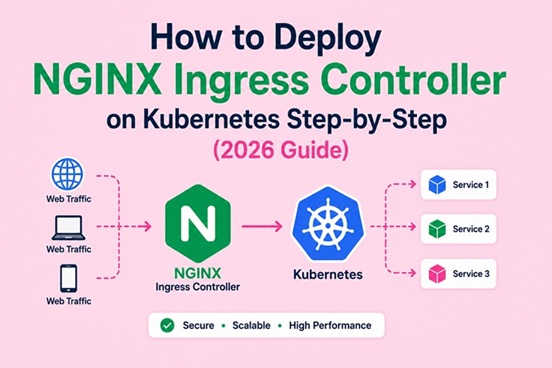
Table of Contents
- What is a Kubernetes Ingress Controller
- Important 2026 Notice: ingress-nginx Retirement
- ingress-nginx vs nginx-ingress: Two Different Projects
- How NGINX Ingress Controller Works
- Prerequisites
- Step 1: Install NGINX Ingress Controller via Helm
- Step 2: Verify the Installation
- Step 3: NodePort vs LoadBalancer — Choosing the Right Service Type
- Step 4: Set Up MetalLB for Bare-Metal LoadBalancer
- Step 5: Deploy Sample Applications
- Step 6: Host-Based Routing
- Step 7: Path-Based Routing
- Step 8: TLS with cert-manager and Let’s Encrypt
- Step 9: Useful Ingress Annotations
- Step 10: Monitor with Prometheus and Grafana
- Common Issues and Quick Fixes
- What Comes Next: Kubernetes Gateway API
- Next Steps
When you run multiple applications in Kubernetes, every service needs a way to receive external traffic. Creating a LoadBalancer service per application works — but each one provisions a separate cloud load balancer with its own IP address and cost. A Kubernetes Ingress Controller solves this by acting as a single entry point: one IP address, one load balancer, and intelligent routing based on hostnames and URL paths to any number of backend services inside the cluster.
NGINX Ingress Controller is the most widely deployed implementation — battle-tested, richly annotated, and running in production clusters worldwide. This guide covers the complete setup from installation to TLS termination, including a critical 2026 update about the project’s future that most tutorials haven’t caught up to yet.
What is a Kubernetes Ingress Controller
An Ingress resource is just a set of routing rules. It does nothing without an Ingress controller — a reverse proxy that watches the Kubernetes API for Ingress objects and configures itself accordingly.
The three standard options for exposing a Kubernetes service to external traffic:
| Method | How it works | Limitation |
|---|---|---|
| NodePort | Opens a high port (30000-32767) on every node | Can’t use ports 80/443; no hostname routing |
| LoadBalancer | Provisions a cloud load balancer per service | One external IP per service — expensive at scale |
| Ingress | Single entry point routes by hostname and path | Requires an Ingress Controller to be installed |
For anything beyond a handful of services, Ingress is the right call. One load balancer, one IP, and your routing rules live in version-controlled YAML alongside the rest of your manifests.
Without Ingress:
  app1.com → LoadBalancer → Service (own IP, own cost)
  app2.com → LoadBalancer → Service (own IP, own cost)
  app3.com → LoadBalancer → Service (own IP, own cost)

With Ingress:
  app1.com  ─┐
  app2.com  ─┤→ Ingress Controller → routes by hostname → Services
  app3.com  ─┘       (single IP, single load balancer)
Important 2026 Notice: ingress-nginx Retirement
What You Need to Know about Ingress NGINX Retirement: Best-effort maintenance will continue until March 2026. Afterward, there will be no further releases, no bugfixes, and no updates to resolve any security vulnerabilities that may be discovered. Existing deployments of Ingress NGINX will not be broken. Existing project artifacts such as Helm charts and container images will remain available. If you are not already using ingress-nginx, you should not be deploying it as it is not being developed. Instead you should identify a Gateway API implementation and use it.
What this means for you:
- Existing clusters running ingress-nginx: Your deployment will not break — existing artifacts remain available indefinitely. But you will receive no security patches going forward. Plan your migration to the Gateway API.
- New clusters (2026 onward): You should identify a Gateway API implementation and use it instead of ingress-nginx.
Why this guide still covers ingress-nginx:
- Millions of existing clusters run ingress-nginx and need documentation for maintenance and troubleshooting
- The Gateway API is newer and has a steeper learning curve — ingress-nginx remains the most practical starting point for teams new to Kubernetes networking
- The last section of this guide covers the Gateway API migration path
The most mature Gateway API implementations to evaluate as replacements: Envoy Gateway, NGINX Gateway Fabric (the official successor from F5), and Cilium Gateway API.
ingress-nginx vs nginx-ingress: Two Different Projects
There are two NGINX-based Ingress controllers floating around and mixing them up causes headaches. The one you want is ingress-nginx, the community-maintained project under the Kubernetes organization. The other one, nginx-ingress, is maintained by F5/NGINX Inc and uses different annotations, different CRDs, and different Helm chart values.
| ingress-nginx | nginx-ingress | |
|---|---|---|
| Maintainer | Kubernetes community | F5/NGINX Inc |
| Helm repo | kubernetes.github.io/ingress-nginx | helm.nginx.com/stable |
| Annotations prefix | nginx.ingress.kubernetes.io/ | nginx.org/ |
| Status (2026) | EOL (retired March 2026) | Active |
| License | Apache 2.0 | Apache 2.0 |
This guide covers ingress-nginx (the community version). If you’re starting fresh, also evaluate nginx-ingress (F5 version) as it remains actively maintained.
How NGINX Ingress Controller Works
External Traffic (port 80/443)
        │
        ▼
NGINX Ingress Controller Pod
  ├── Watches Kubernetes API for Ingress resources
  ├── Dynamically generates nginx.conf from Ingress rules
  └── Routes requests based on:
        ├── Host header → app1.yourdomain.com → Service A
        ├── Host header → app2.yourdomain.com → Service B
        └── Path prefix → /api/ → Service C, / → Service D
        │
        ▼
Backend Services (ClusterIP)
  ├── Service A (Pods)
  ├── Service B (Pods)
  └── Service C (Pods)
When you create or update an Ingress resource, the Controller detects the change within seconds and hot-reloads its configuration without dropping existing connections.
Prerequisites
- A running Kubernetes cluster — see our Install Kubernetes Cluster on Ubuntu 26.04 guide
kubectlconfigured and connected to the clusterhelmv3+ installed- A domain name (optional for basic testing, required for TLS)
Verify cluster is ready:
kubectl get nodes
# All nodes should show Ready

kubectl get pods -A
# All system pods should be Running
Install Helm if not already installed:
curl https://raw.githubusercontent.com/helm/helm/main/scripts/get-helm-3 | bash
helm version
Step 1: Install NGINX Ingress Controller via Helm
Helm offers more customization options and is the recommended approach for production installations.
# Add the ingress-nginx Helm repository
helm repo add ingress-nginx https://kubernetes.github.io/ingress-nginx
helm repo update

# Install ingress-nginx
helm upgrade --install ingress-nginx ingress-nginx/ingress-nginx \
  --namespace ingress-nginx \
  --create-namespace \
  --set controller.replicaCount=2 \
  --set controller.metrics.enabled=true \
  --set controller.podAnnotations."prometheus\.io/scrape"=true \
  --set controller.podAnnotations."prometheus\.io/port"=10254
Key flags explained:
--set controller.replicaCount=2— run 2 controller pods for high availability. If one pod is rescheduled or updated, traffic continues through the other.controller.metrics.enabled=true— expose Prometheus metrics on port 10254 — useful for integration with our Prometheus + Grafana monitoring stack.- Prometheus annotations — allow Prometheus to auto-discover and scrape ingress metrics.
For bare-metal clusters (no cloud LoadBalancer), add the NodePort configuration:
helm upgrade --install ingress-nginx ingress-nginx/ingress-nginx \
  --namespace ingress-nginx \
  --create-namespace \
  --set controller.service.type=NodePort \
  --set controller.service.nodePorts.http=30080 \
  --set controller.service.nodePorts.https=30443 \
  --set controller.replicaCount=2 \
  --set controller.metrics.enabled=true
Step 2: Verify the Installation
# Check controller pods are running
kubectl get pods -n ingress-nginx
# NAME                                        READY   STATUS    RESTARTS
# ingress-nginx-controller-xxx                1/1     Running   0
# ingress-nginx-controller-yyy               1/1     Running   0

# Check the service
kubectl get svc -n ingress-nginx
# NAME                         TYPE           CLUSTER-IP     EXTERNAL-IP     PORT(S)
# ingress-nginx-controller     LoadBalancer   10.96.x.x      <pending>       80:31234/TCP,443:32567/TCP
On cloud providers, EXTERNAL-IP populates within 1-2 minutes. On bare-metal clusters, it will show <pending> — see Step 4 for MetalLB to fix this.
Verify the IngressClass was created:
kubectl get ingressclass
# NAME    CONTROLLER             PARAMETERS   AGE
# nginx   k8s.io/ingress-nginx   <none>       1m
Test the controller responds (should return 404 — no backends configured yet):
# Cloud: use the EXTERNAL-IP
curl -I http://<EXTERNAL-IP>
# Expected: HTTP/1.1 404 Not Found (from NGINX — controller is running)

# Bare-metal NodePort:
curl -I http://<any-node-ip>:30080
A 404 from NGINX confirms the controller is running and reachable — 404 means “no Ingress rules matched,” not an error.
Step 3: NodePort vs LoadBalancer — Choosing the Right Service Type
The Ingress Controller itself needs to be exposed — the service type determines how:
LoadBalancer (cloud environments):
# Default for cloud providers (EKS, GKE, AKS, DigitalOcean)
# Cloud automatically provisions an external load balancer
controller:
  service:
    type: LoadBalancer
External traffic → Cloud Load Balancer → Ingress Controller Pod → Backend Services
NodePort (bare-metal, on-premise):
# High ports only — external traffic must specify the port
controller:
  service:
    type: NodePort
    nodePorts:
      http: 30080
      https: 30443
External traffic → <node-ip>:30080 → Ingress Controller Pod → Backend Services
HostNetwork (advanced bare-metal — binds to host port 80/443 directly):
helm upgrade --install ingress-nginx ingress-nginx/ingress-nginx \
  --namespace ingress-nginx \
  --create-namespace \
  --set controller.hostNetwork=true \
  --set controller.service.type=ClusterIP \
  --set controller.dnsPolicy=ClusterFirstWithHostNet \
  --set controller.kind=DaemonSet    # One pod per node, each binding port 80
External traffic → <node-ip>:80 → Ingress Controller (on host network) → Backend Services
HostNetwork gives you ports 80 and 443 on bare metal without a load balancer — but requires running the controller as a DaemonSet and means it shares the host’s network namespace.
Step 4: Set Up MetalLB for Bare-Metal LoadBalancer
On bare-metal clusters, the LoadBalancer service type stays <pending> forever because there’s no cloud provider to provision one. MetalLB fills this gap by implementing a software load balancer using either ARP (Layer 2) or BGP:
# Install MetalLB
kubectl apply -f https://raw.githubusercontent.com/metallb/metallb/v0.14.9/config/manifests/metallb-native.yaml

# Wait for MetalLB to be ready
kubectl wait --namespace metallb-system \
  --for=condition=ready pod \
  --selector=app=metallb \
  --timeout=90s
Configure an IP address pool (use IPs available on your local network):
# metallb-config.yaml
apiVersion: metallb.io/v1beta1
kind: IPAddressPool
metadata:
  name: first-pool
  namespace: metallb-system
spec:
  addresses:
    - 192.168.1.200-192.168.1.210   # Replace with IPs available on your network
---
apiVersion: metallb.io/v1beta1
kind: L2Advertisement
metadata:
  name: first-advertisement
  namespace: metallb-system
spec:
  ipAddressPools:
    - first-pool
kubectl apply -f metallb-config.yamlWithin 30 seconds, the ingress-nginx service should receive an EXTERNAL-IP from the pool:
kubectl get svc -n ingress-nginx
# NAME                         TYPE           CLUSTER-IP     EXTERNAL-IP     PORT(S)
# ingress-nginx-controller     LoadBalancer   10.96.x.x      192.168.1.200   80:xxx/TCP,443:xxx/TCP
Step 5: Deploy Sample Applications
Deploy two simple applications to test routing:
# sample-apps.yaml
apiVersion: apps/v1
kind: Deployment
metadata:
  name: app-one
  namespace: default
spec:
  replicas: 2
  selector:
    matchLabels:
      app: app-one
  template:
    metadata:
      labels:
        app: app-one
    spec:
      containers:
        - name: app-one
          image: nginx:alpine
          ports:
            - containerPort: 80
          volumeMounts:
            - name: html
              mountPath: /usr/share/nginx/html
      initContainers:
        - name: init
          image: busybox
          command: ['sh', '-c', 'echo "<h1>App One</h1>" > /html/index.html']
          volumeMounts:
            - name: html
              mountPath: /html
      volumes:
        - name: html
          emptyDir: {}
---
apiVersion: v1
kind: Service
metadata:
  name: app-one
  namespace: default
spec:
  selector:
    app: app-one
  ports:
    - port: 80
      targetPort: 80
---
apiVersion: apps/v1
kind: Deployment
metadata:
  name: app-two
  namespace: default
spec:
  replicas: 2
  selector:
    matchLabels:
      app: app-two
  template:
    metadata:
      labels:
        app: app-two
    spec:
      containers:
        - name: app-two
          image: nginx:alpine
          ports:
            - containerPort: 80
          volumeMounts:
            - name: html
              mountPath: /usr/share/nginx/html
      initContainers:
        - name: init
          image: busybox
          command: ['sh', '-c', 'echo "<h1>App Two</h1>" > /html/index.html']
          volumeMounts:
            - name: html
              mountPath: /html
      volumes:
        - name: html
          emptyDir: {}
---
apiVersion: v1
kind: Service
metadata:
  name: app-two
  namespace: default
spec:
  selector:
    app: app-two
  ports:
    - port: 80
      targetPort: 80
kubectl apply -f sample-apps.yaml
kubectl get pods,svc
# Verify all pods are Running and services existStep 6: Host-Based Routing
Route traffic to different services based on the incoming hostname:
# host-based-ingress.yaml
apiVersion: networking.k8s.io/v1
kind: Ingress
metadata:
  name: host-based-ingress
  namespace: default
  annotations:
    nginx.ingress.kubernetes.io/rewrite-target: /
spec:
  ingressClassName: nginx
  rules:
    - host: app1.yourdomain.com
      http:
        paths:
          - path: /
            pathType: Prefix
            backend:
              service:
                name: app-one
                port:
                  number: 80
    - host: app2.yourdomain.com
      http:
        paths:
          - path: /
            pathType: Prefix
            backend:
              service:
                name: app-two
                port:
                  number: 80
kubectl apply -f host-based-ingress.yaml
# Verify ingress was created and has an ADDRESS
kubectl get ingress
# NAME CLASS HOSTS ADDRESS PORTS AGE
# host-based-ingress nginx app1.yourdomain.com,app2.yourdomain 192.168.1.200 80 30sTest without a real domain using curl’s --resolve flag:
INGRESS_IP=$(kubectl get svc -n ingress-nginx ingress-nginx-controller -o jsonpath='{.status.loadBalancer.ingress[0].ip}')

curl --resolve "app1.yourdomain.com:80:$INGRESS_IP" http://app1.yourdomain.com
# Expected: <h1>App One</h1>

curl --resolve "app2.yourdomain.com:80:$INGRESS_IP" http://app2.yourdomain.com
# Expected: <h1>App Two</h1>
Step 7: Path-Based Routing
Route different URL paths to different services — useful for a single domain with multiple API versions or microservices:
# path-based-ingress.yaml
apiVersion: networking.k8s.io/v1
kind: Ingress
metadata:
  name: path-based-ingress
  namespace: default
  annotations:
    nginx.ingress.kubernetes.io/rewrite-target: /$2    # Strip the path prefix
spec:
  ingressClassName: nginx
  rules:
    - host: api.yourdomain.com
      http:
        paths:
          - path: /app1(/|$)(.*)
            pathType: ImplementationSpecific
            backend:
              service:
                name: app-one
                port:
                  number: 80
          - path: /app2(/|$)(.*)
            pathType: ImplementationSpecific
            backend:
              service:
                name: app-two
                port:
                  number: 80
Test path routing:
INGRESS_IP=$(kubectl get svc -n ingress-nginx ingress-nginx-controller \
  -o jsonpath='{.status.loadBalancer.ingress[0].ip}')

curl --resolve "api.yourdomain.com:80:$INGRESS_IP" http://api.yourdomain.com/app1/
# Expected: <h1>App One</h1>

curl --resolve "api.yourdomain.com:80:$INGRESS_IP" http://api.yourdomain.com/app2/
# Expected: <h1>App Two</h1>
The rewrite-target: /$2 annotation strips the prefix (/app1 or /app2) before forwarding to the backend — the backend sees / instead of /app1/, which is usually what you want.
Step 8: TLS with cert-manager and Let’s Encrypt
Install cert-manager:
helm repo add jetstack https://charts.jetstack.io
helm repo update

helm upgrade --install cert-manager jetstack/cert-manager \
  --namespace cert-manager \
  --create-namespace \
  --set crds.enabled=true
Wait for cert-manager to be ready:
kubectl get pods -n cert-manager
# All pods should be Running before proceeding
Create a ClusterIssuer for Let’s Encrypt:
# cluster-issuer.yaml
apiVersion: cert-manager.io/v1
kind: ClusterIssuer
metadata:
  name: letsencrypt-prod
spec:
  acme:
    server: https://acme-v02.api.letsencrypt.org/directory
    email: your-email@yourdomain.com    # Must be a real email
    privateKeySecretRef:
      name: letsencrypt-prod-account-key
    solvers:
      - http01:
          ingress:
            ingressClassName: nginx
kubectl apply -f cluster-issuer.yaml
# Verify the issuer is ready
kubectl get clusterissuer letsencrypt-prod
# READY should be TrueCreate an Ingress with automatic TLS:
# tls-ingress.yaml
apiVersion: networking.k8s.io/v1
kind: Ingress
metadata:
  name: tls-ingress
  namespace: default
  annotations:
    cert-manager.io/cluster-issuer: "letsencrypt-prod"     # Auto-request certificate
    nginx.ingress.kubernetes.io/ssl-redirect: "true"        # Force HTTPS
    nginx.ingress.kubernetes.io/force-ssl-redirect: "true"
spec:
  ingressClassName: nginx
  tls:
    - hosts:
        - app1.yourdomain.com
      secretName: app1-tls-cert    # cert-manager stores the cert here
  rules:
    - host: app1.yourdomain.com
      http:
        paths:
          - path: /
            pathType: Prefix
            backend:
              service:
                name: app-one
                port:
                  number: 80
kubectl apply -f tls-ingress.yaml
# Watch cert-manager issue the certificate
kubectl get certificate -n default
# NAME READY SECRET AGE
# app1-tls-cert True app1-tls-cert 2mOnce READY shows True, your application is serving HTTPS with a valid Let’s Encrypt certificate. cert-manager handles automatic renewal — no manual intervention needed.
Rate limit warning: Let’s Encrypt allows 5 certificate requests per domain per week. Use the staging issuer while testing:
server: https://acme-staging-v02.api.letsencrypt.org/directory
Step 9: Useful Ingress Annotations
Ingress annotations let you customize NGINX behavior per-route without touching any config files:
metadata:
  annotations:
    # ── Rate limiting ──────────────────────────────────────────
    nginx.ingress.kubernetes.io/limit-rps: "100"           # Max 100 req/sec per IP
    nginx.ingress.kubernetes.io/limit-connections: "10"    # Max 10 concurrent connections per IP

    # ── Authentication ─────────────────────────────────────────
    nginx.ingress.kubernetes.io/auth-type: basic
    nginx.ingress.kubernetes.io/auth-secret: basic-auth    # kubectl create secret generic basic-auth
    nginx.ingress.kubernetes.io/auth-realm: "Restricted"

    # ── CORS ───────────────────────────────────────────────────
    nginx.ingress.kubernetes.io/enable-cors: "true"
    nginx.ingress.kubernetes.io/cors-allow-origin: "https://app.yourdomain.com"
    nginx.ingress.kubernetes.io/cors-allow-methods: "GET, PUT, POST, DELETE, OPTIONS"

    # ── Custom timeouts ────────────────────────────────────────
    nginx.ingress.kubernetes.io/proxy-read-timeout: "300"   # 5 min — for AI inference endpoints
    nginx.ingress.kubernetes.io/proxy-send-timeout: "300"
    nginx.ingress.kubernetes.io/proxy-connect-timeout: "60"

    # ── WebSocket support ──────────────────────────────────────
    nginx.ingress.kubernetes.io/proxy-read-timeout: "3600"
    nginx.ingress.kubernetes.io/proxy-send-timeout: "3600"

    # ── Body size ──────────────────────────────────────────────
    nginx.ingress.kubernetes.io/proxy-body-size: "50m"     # Allow 50MB uploads

    # ── IP allowlist ───────────────────────────────────────────
    nginx.ingress.kubernetes.io/whitelist-source-range: "192.168.1.0/24,10.0.0.0/8"

    # ── Redirect ───────────────────────────────────────────────
    nginx.ingress.kubernetes.io/permanent-redirect: "https://new.yourdomain.com"

    # ── Custom error pages ─────────────────────────────────────
    nginx.ingress.kubernetes.io/custom-http-errors: "404,503"
    nginx.ingress.kubernetes.io/default-backend: my-error-page-service

    # ── SSL passthrough (for backends handling their own TLS) ──
    nginx.ingress.kubernetes.io/ssl-passthrough: "true"
Step 10: Monitor with Prometheus and Grafana
The NGINX Ingress Controller exposes rich Prometheus metrics at port 10254. If you have the Prometheus + Grafana monitoring stack running, add a scrape job for ingress metrics:
# Add to prometheus.yml scrape_configs
- job_name: 'nginx-ingress'
  kubernetes_sd_configs:
    - role: pod
      namespaces:
        names:
          - ingress-nginx
  relabel_configs:
    - source_labels: [__meta_kubernetes_pod_annotation_prometheus_io_scrape]
      action: keep
      regex: "true"
    - source_labels: [__meta_kubernetes_pod_annotation_prometheus_io_port]
      action: replace
      target_label: __address__
      regex: (.+)
      replacement: ${1}:10254
Key metrics to watch:
| Metric | Description |
|---|---|
nginx_ingress_controller_requests | Request rate by status code |
nginx_ingress_controller_request_duration_seconds | Request latency histogram |
nginx_ingress_controller_nginx_process_connections | Active connections |
nginx_ingress_controller_ssl_expire_time_seconds | TLS certificate expiry time |
Import Grafana Dashboard ID 9614 — the official NGINX Ingress Controller dashboard. It shows request rate, error rate, latency percentiles, upstream response time, and active connections — all pre-built.
Common Issues and Quick Fixes
| Symptom | Likely Cause | Fix |
|---|---|---|
EXTERNAL-IP stays <pending> on bare metal | No cloud LoadBalancer available | Install MetalLB (Step 4) or use NodePort |
| 404 from NGINX with no Ingress rules | Expected — no backend configured | Deploy an app and Ingress resource |
| 404 after applying Ingress | Ingress has no ingressClassName: nginx | Add spec.ingressClassName: nginx |
TLS certificate stays in False state | HTTP challenge fails — port 80 not reachable | Verify port 80 is open in firewall; DNS must point to cluster IP |
upstream sent invalid header | Backend returns malformed response | Check backend app logs; verify backend port in Ingress |
| WebSocket connections drop | Missing timeout annotations | Add proxy-read-timeout and proxy-send-timeout annotations |
| Rate limiting too aggressive | limit-rps set too low | Adjust nginx.ingress.kubernetes.io/limit-rps annotation |
| Ingress works for HTTP but not HTTPS | ssl-redirect or TLS secret missing | Verify cert-manager issued the certificate; check TLS secret exists |
What Comes Next: Kubernetes Gateway API
If you are not already using ingress-nginx, you should not be deploying it as it is not being developed. Instead you should identify a Gateway API implementation and use it.
The Kubernetes Gateway API is the official successor to the Ingress API. It addresses limitations of the Ingress spec:
| Ingress API | Gateway API | |
|---|---|---|
| Role separation | Single resource manages everything | Separate GatewayClass, Gateway, HTTPRoute roles |
| Multi-tenancy | Limited (all in one resource) | Native (infra team manages Gateway, app teams manage Routes) |
| Protocol support | HTTP/HTTPS + annotations | HTTP, HTTPS, TCP, UDP, gRPC natively |
| Traffic splitting | Via annotations only | Native (weighted routing, canary, blue-green) |
| TLS configuration | Annotation-heavy | Built into spec |
| Status | Ingress-nginx EOL | Active — the future |
Migrate an Ingress rule to HTTPRoute (Gateway API):
# Before: Ingress
apiVersion: networking.k8s.io/v1
kind: Ingress
metadata:
  name: my-ingress
  annotations:
    nginx.ingress.kubernetes.io/rewrite-target: /
spec:
  ingressClassName: nginx
  rules:
    - host: app.yourdomain.com
      http:
        paths:
          - path: /
            pathType: Prefix
            backend:
              service:
                name: app-one
                port:
                  number: 80
---
# After: HTTPRoute (Gateway API)
apiVersion: gateway.networking.k8s.io/v1
kind: HTTPRoute
metadata:
  name: my-httproute
spec:
  parentRefs:
    - name: my-gateway
  hostnames:
    - "app.yourdomain.com"
  rules:
    - matches:
        - path:
            type: PathPrefix
            value: /
      backendRefs:
        - name: app-one
          port: 80
For new clusters in 2026 and beyond, evaluate NGINX Gateway Fabric (F5’s Gateway API implementation, direct successor to ingress-nginx) or Envoy Gateway before starting with ingress-nginx.
Next Steps
With NGINX Ingress Controller running in your cluster:
- Add TLS monitoring — the
nginx_ingress_controller_ssl_expire_time_secondsmetric in Prometheus + Grafana alerts you before a certificate expires - Secure the cluster — now that external traffic can reach your applications, review the full hardening checklist in our KubeSphere and Kubernetes Security guide — RBAC, Pod Security Standards, and network policies are the next priority
- Add the Kubernetes Dashboard — with the Ingress Controller running, you can expose the Kubernetes Dashboard behind an Ingress rule with TLS and IP allowlisting, which is far cleaner than port-forward
- Plan Gateway API migration — if you’re starting a new cluster, evaluate NGINX Gateway Fabric or Envoy Gateway instead of ingress-nginx, which reached retirement in March 2026
Related posts:
 Install and Configure K3s with NVIDIA GPU Operator on Ubuntu 22.04
 Top 15 Kubernetes Interview Questions and Answers for Beginners (2025)
How to Install Kubernetes (K8s) on Ubuntu 24.04: A Step-by-Step Guide
Top 15 Kubernetes Interview Questions and Answers for Beginners (2025)
How to Install Kubernetes (K8s) on Ubuntu 24.04: A Step-by-Step Guide
 What Is KubeKey? Complete Explanation for DevOps Beginners
 How to Install Kubernetes Cluster on Ubuntu 26.04 LTS Using kubeadm (2026 Guide)
 KubeSphere and Kubernetes Security: Complete Hardening Guide for 2026
 How to Install Kubernetes Dashboard on Ubuntu 26.04 with Secure Access
 How To Install Docker On CentOS 7
