Redis with Docker Compose: Persistence, Security, and Production-Ready Configuration

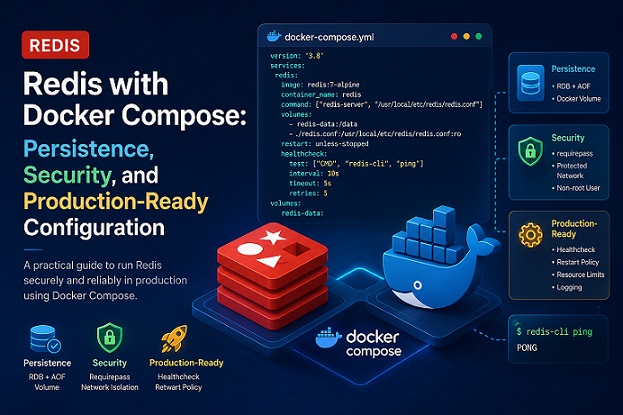
Table of Contents
- Why Redis Containers Lose Data
- RDB vs AOF: Choosing a Persistence Strategy
- Basic Setup with Docker Compose
- Full Persistence Configuration
- Securing Redis in Docker
- Setting Resource Limits
- Redis in a Multi-Service Stack
- Backing Up and Restoring a Redis Volume
- Common Issues and Quick Fixes
- Closing Notes
Redis is one of the most common services to run in Docker — it’s fast to spin up, lightweight, and perfect for caching, session storage, and queues. But that same simplicity hides a trap: by default, Redis in Docker stores everything in memory, and the moment a container is removed, all of that data disappears.
This guide walks through setting up Redis with Docker Compose the right way — covering persistence, authentication, resource limits, and the health checks you need before putting it anywhere near production.
Why Redis Containers Lose Data
A Docker container is meant to be disposable. That’s a feature for stateless services, but it’s a liability for a database like Redis. If you start a plain Redis container without a mounted volume, here’s what happens:
- The container writes its dataset only inside its own writable layer.
docker compose downordocker rmremoves that layer entirely.- The next time the container starts, Redis initializes with an empty dataset.
This single oversight accounts for a large share of “we lost our session data” incidents in small teams running Redis in containers for the first time. The fix is straightforward once you understand the two persistence mechanisms Redis offers.
RDB vs AOF: Choosing a Persistence Strategy
Redis supports two persistence models, and production setups typically combine both:
RDB (Redis Database snapshots)
Point-in-time snapshots of the dataset, saved at intervals you define. Fast to restore, but you can lose any writes that happened after the last snapshot.
AOF (Append Only File)
Every write operation is logged to disk as it happens. Slower to restore on a large dataset, but far safer — with appendfsync everysec, you lose at most one second of writes.
For most production workloads, enable both: AOF for durability, RDB for fast snapshot-based backups.
Basic Setup with Docker Compose
Start with a minimal but persistent configuration:
version: '3.8'
services:
  redis:
    image: redis:7-alpine
    container_name: redis
    restart: unless-stopped
    ports:
      - "6379:6379"
    volumes:
      - redis-data:/data
    command: redis-server --appendonly yes

volumes:
  redis-data:
    driver: local
The key line here is volumes: - redis-data:/data. The official Redis image is already configured to write its dataset to /data, so mounting a named volume there is enough to survive a container removal. Named volumes are preferred over bind mounts for this purpose — they’re portable across hosts and Docker manages their lifecycle for you.
Full Persistence Configuration
For more control, mount a custom redis.conf instead of relying on command-line flags:
# redis.conf

# Network
bind 0.0.0.0
port 6379
protected-mode yes

# Security
requirepass your_secure_password_here

# Memory management
maxmemory 512mb
maxmemory-policy allkeys-lru

# AOF persistence
appendonly yes
appendfsync everysec
auto-aof-rewrite-percentage 100
auto-aof-rewrite-min-size 64mb

# RDB persistence
save 900 1
save 300 10
save 60 10000
stop-writes-on-bgsave-error yes
rdbcompression yes
rdbchecksum yes

# Logging
loglevel notice
Mount it in Docker Compose:
services:
  redis:
    image: redis:7-alpine
    container_name: redis
    restart: unless-stopped
    ports:
      - "6379:6379"
    volumes:
      - redis-data:/data
      - ./redis.conf:/usr/local/etc/redis/redis.conf:ro
    command: redis-server /usr/local/etc/redis/redis.conf

volumes:
  redis-data:
    driver: local
Mounting the config file as read-only (:ro) prevents Redis itself from accidentally modifying it, and keeps your configuration under version control instead of buried in command-line arguments.
Securing Redis in Docker
Redis has no authentication enabled by default, and it has been a recurring target for cryptomining botnets that scan the internet for exposed instances on port 6379. A few non-negotiable steps:
- Always set
requirepass. Never run Redis withALLOW_EMPTY_PASSWORDoutside of a local, throwaway development environment. - Never expose port 6379 directly to the internet. If remote access is genuinely needed, put it behind a VPN or SSH tunnel — not a public port mapping.
- Disable dangerous commands in production, such as
FLUSHALL,FLUSHDB, andCONFIG, usingrename-commandinredis.conf. - Run as a non-root user. The official and Bitnami images already drop privileges by default — don’t override this with
SKIP_DROP_PRIVSunless you have a specific reason to.
This is the same defense-in-depth mindset covered in our Docker Container Security Best Practices guide — Redis just adds a database-specific layer to those general container hardening principles.
Setting Resource Limits
An unbounded Redis instance can consume all available host memory under heavy load, taking down other services on the same machine. Set explicit limits:
services:
  redis:
    image: redis:7-alpine
    deploy:
      resources:
        limits:
          memory: 1G
        reservations:
          memory: 256M
    command: redis-server --maxmemory 800mb --maxmemory-policy allkeys-lru
Note the two limits work at different layers: deploy.resources.limits.memory is enforced by Docker itself (the container gets OOM-killed if it crosses this), while maxmemory inside Redis tells Redis to start evicting keys before that happens — using allkeys-lru as a sensible general-purpose eviction policy for caching workloads.
Redis in a Multi-Service Stack
When Redis is shared by an API and a background worker, startup order matters. A worker that connects before Redis is ready will crash-loop. Use a health check with condition: service_healthy:
version: '3.8'
services:
  redis:
    image: redis:7-alpine
    restart: unless-stopped
    command: redis-server --appendonly yes --requirepass ${REDIS_PASSWORD}
    volumes:
      - redis-data:/data
    healthcheck:
      test: ["CMD", "redis-cli", "-a", "${REDIS_PASSWORD}", "ping"]
      interval: 10s
      timeout: 5s
      retries: 5
      start_period: 30s
    networks:
      - backend

  api:
    build: ./api
    depends_on:
      redis:
        condition: service_healthy
    environment:
      REDIS_URL: redis://:${REDIS_PASSWORD}@redis:6379/0
    networks:
      - backend

  worker:
    build: ./worker
    depends_on:
      redis:
        condition: service_healthy
    environment:
      REDIS_URL: redis://:${REDIS_PASSWORD}@redis:6379/1
    networks:
      - backend

volumes:
  redis-data:
    driver: local

networks:
  backend:
    driver: bridge
Two details worth highlighting:
- Logical databases. Redis supports 16 logical databases (0–15) on a single instance. Assigning a different database index per service (
/0for the API,/1for the worker) avoids key collisions without running multiple Redis containers — useful in smaller setups where running separate instances would be overkill. - Custom bridge network. Putting Redis on its own
backendnetwork — separate from any network that’s exposed to the outside — limits which containers can even attempt to reach it. This pairs directly with the network segmentation principles in our Docker Network Security guide.
Backing Up and Restoring a Redis Volume
Even with persistence enabled, you still want backups independent of the running container — protecting against accidental FLUSHALL, corrupted volumes, or host failure.
Backup script:
#!/bin/bash
# backup-redis-volume.sh
VOLUME_NAME="redis_redis-data"
BACKUP_DIR="/backups/redis"
DATE=$(date +%Y%m%d-%H%M%S)
mkdir -p "$BACKUP_DIR"

# Trigger a snapshot before backing up
docker exec redis redis-cli BGSAVE
sleep 5

docker run --rm \
  -v "$VOLUME_NAME:/data:ro" \
  -v "$BACKUP_DIR:/backup" \
  alpine tar czf "/backup/redis-data-$DATE.tar.gz" -C /data .

echo "Backup created: $BACKUP_DIR/redis-data-$DATE.tar.gz"
Restore script:
#!/bin/bash
# restore-redis-volume.sh
BACKUP_FILE="$1"
VOLUME_NAME="redis_redis-data"

docker compose stop redis

docker run --rm \
  -v "$VOLUME_NAME:/data" \
  -v "$(dirname "$BACKUP_FILE"):/backup:ro" \
  alpine tar xzf "/backup/$(basename "$BACKUP_FILE")" -C /data

docker compose start redis
echo "Restore complete from $BACKUP_FILE"
The same backup-then-archive pattern is used in our MongoDB Backup article — if you’re running both databases in the same stack, you can adapt one scheduled cron job to cover both with minimal changes.
Common Issues and Quick Fixes
| Symptom | Likely Cause | Fix |
|---|---|---|
Data gone after docker compose down | No volume mounted | Add a named volume at /data. |
WRONGPASS errors from application | Password mismatch between redis.conf and application environment variables | Verify that REDIS_PASSWORD matches in both configurations. |
| Redis container OOM-killed | No memory limit configured or missing eviction policy | Set deploy.resources.limits.memory and configure maxmemory-policy. |
| Worker crash-loops on startup | Worker starts before Redis is fully ready | Add a healthcheck and use condition: service_healthy. |
| High latency under load | Synchronous AOF fsync configuration | Use appendfsync everysec instead of always. |
Conclusion
Running Redis in Docker Compose is simple to get started with — and just as simple to get wrong if persistence and security are treated as an afterthought. The pattern that holds up well in production is consistent: named volumes for /data, AOF+RDB persistence enabled together, requirepass always set, explicit memory limits, and a health check gating any service that depends on Redis being ready.
From here, if your stack also includes MongoDB or another database alongside Redis, the same volume-and-backup discipline applies — see our MongoDB Backup guide for the database-specific details, and our Docker Network Security guide for locking down how these containers talk to each other.
Related posts:
 How To Install Redis On Ubuntu 20.04
 Docker Compose Security: Complete Hardening Guide for 2026
 How To Install Docker On CentOS 7
 Setting Up an Ubuntu Docker Container with SSH Access
 Install Redis Server on OpenSUSE Tumbleweed [2026 Guide]
 How To Install Docker CE On Ubuntu 24.04 LTS
 MongoDB Troubleshooting Guide: Common Issues and How to Fix Them
 Trivy Docker Security: How to Scan and Fix Container Vulnerabilities
