Docker Compose Security: Complete Hardening Guide for 2026

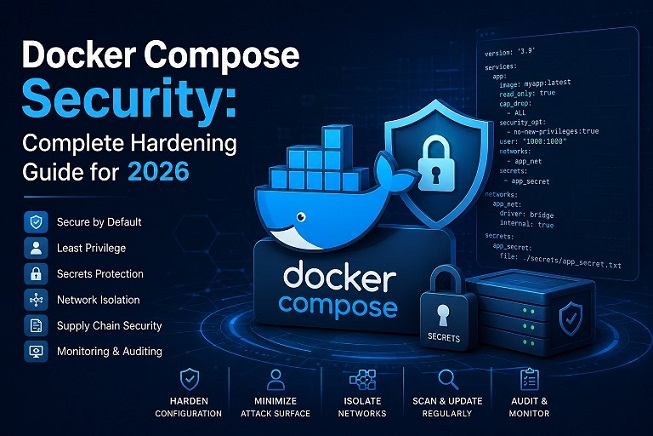
Docker Compose makes it incredibly easy to spin up multi-container applications with a single command. But that convenience comes with a risk: developers often prioritize getting things running over getting things secure. The result is production environments riddled with exposed ports, plaintext secrets, privileged containers, and no network isolation whatsoever.
For the broader production security checklist beyond Compose, refer to our Docker Security Best Practices for Production guide.This guide covers everything you need to secure a Docker Compose setup — from network segmentation and secret management to resource limits and read-only filesystems — with real docker-compose.yml examples you can apply today.
Why Docker Compose Security Deserves Its Own Attention
Most Docker security guides focus on individual containers. But Docker Compose introduces an additional layer of complexity:
- Multiple services interact with each other
- A single
docker-compose.ymlfile defines the entire stack - Misconfiguration in one service can expose the entire application
- Developers frequently reuse development configs in production
A single insecure line in your Compose file — such as mounting the Docker socket or using network_mode: host — can undermine every other security measure you have in place.
Let us go through each area systematically.
1. Never Use network_mode: host
One of the most dangerous settings in Docker Compose is network_mode: host. This removes all network isolation between the container and the host, meaning the container shares the host’s network stack directly.
# ❌ DANGEROUS — removes all network isolation
services:
  webapp:
    image: myapp:latest
    network_mode: host
With network_mode: host, a compromised container can bind to any port on the host, intercept traffic, and reach services that were never intended to be exposed.
Always use bridge networks instead:
# ✅ CORRECT — explicit bridge network with isolation
services:
  webapp:
    image: myapp:latest
    networks:
      - app_net

networks:
  app_net:
    driver: bridge
2. Segment Your Network by Function
By default, all services in a Docker Compose file share the same network and can reach each other freely. This violates the principle of least privilege at the network level.
The correct approach is to create separate networks for each tier of your application.
version: "3.9"

services:
  nginx:
    image: nginx:alpine
    ports:
      - "80:80"
      - "443:443"
    networks:
      - frontend_net
    depends_on:
      - app

  app:
    image: myapp:latest
    networks:
      - frontend_net
      - backend_net
    depends_on:
      - db
      - redis

  db:
    image: postgres:15-alpine
    networks:
      - backend_net  # Only reachable by app, not by nginx

  redis:
    image: redis:7-alpine
    networks:
      - backend_net  # Only reachable by app

networks:
  frontend_net:
    driver: bridge
  backend_net:
    driver: bridge
    internal: true  # No outbound internet access for backend services
With internal: true on the backend network, your database and cache services have no direct internet access — even if an attacker compromises one of them.
3. Run Containers as Non-Root Users
Just as with standalone containers, services in Docker Compose should never run as root. Set the user directive in your Compose file or ensure your Dockerfile defines a non-root user.
Option A — Set user in docker-compose.yml:
services:
  app:
    image: myapp:latest
    user: "1001:1001"  # UID:GID
Option B — Define the user in your Dockerfile (recommended):
FROM node:20-alpine
RUN addgroup -S appgroup && adduser -S appuser -G appgroup
WORKDIR /app
COPY . .
USER appuser
CMD ["node", "server.js"]
Then reference it in Compose normally — the non-root user is baked into the image.
Verify after starting your stack:
docker compose exec app whoami
# Expected: appuser (not root)
4. Use Docker Secrets for Sensitive Data
Hardcoding passwords and API keys directly into docker-compose.yml is one of the most common and dangerous mistakes. These values end up in version control, CI/CD logs, and container inspect output.
# ❌ NEVER do this
services:
  db:
    image: postgres:15-alpine
    environment:
      POSTGRES_PASSWORD: mysecretpassword
Use Docker Secrets instead (Docker Swarm mode):
# Create secrets from the command line
echo "mysecretpassword" | docker secret create db_password -
echo "myapikey123" | docker secret create api_key -
# docker-compose.yml with secrets
version: "3.9"
services:
db:
image: postgres:15-alpine
environment:
POSTGRES_PASSWORD_FILE: /run/secrets/db_password
secrets:
- db_password
app:
image: myapp:latest
environment:
API_KEY_FILE: /run/secrets/api_key
secrets:
- api_key
secrets:
db_password:
external: true
api_key:
external: trueFor non-Swarm development environments, use a .env file — but make absolutely sure it is listed in .gitignore:
# .env
POSTGRES_PASSWORD=mysecretpassword
API_KEY=myapikey123
# docker-compose.yml referencing .env
services:
db:
image: postgres:15-alpine
environment:
POSTGRES_PASSWORD: ${POSTGRES_PASSWORD}# .gitignore
.env
*.env5. Set Resource Limits for Every Service
Without resource limits, a single misbehaving or compromised service can starve the entire host of CPU and memory — an effective Denial of Service attack from within your own stack.
version: "3.9"

services:
  app:
    image: myapp:latest
    deploy:
      resources:
        limits:
          cpus: "0.50"
          memory: 512M
        reservations:
          cpus: "0.25"
          memory: 256M

  db:
    image: postgres:15-alpine
    deploy:
      resources:
        limits:
          cpus: "1.00"
          memory: 1G
        reservations:
          memory: 512M

  redis:
    image: redis:7-alpine
    deploy:
      resources:
        limits:
          cpus: "0.25"
          memory: 128M
Note: The
deploy.resourceskey works natively with Docker Swarm. For plaindocker compose up, use--compatibilityflag or switch to the oldermem_limit/cpuskeys at the service level.
# Alternative for plain Docker Compose (non-Swarm)
services:
  app:
    image: myapp:latest
    mem_limit: 512m
    cpus: 0.5
6. Enable Read-Only Filesystems
Containers in your Compose stack should not be able to write to their own filesystems unless absolutely necessary. Use read_only: true and mount tmpfs only for directories that genuinely need write access.
version: "3.9"

services:
  nginx:
    image: nginx:alpine
    read_only: true
    tmpfs:
      - /tmp
      - /var/cache/nginx
      - /var/run
    volumes:
      - ./nginx.conf:/etc/nginx/nginx.conf:ro  # Mount config as read-only

  app:
    image: myapp:latest
    read_only: true
    tmpfs:
      - /tmp
    volumes:
      - app_uploads:/app/uploads  # Named volume for legitimate write access

volumes:
  app_uploads:
Mounting your configuration files with :ro (read-only) at the end of the volume path is also a good habit — it prevents the container from accidentally or maliciously overwriting its own config.
7. Drop Unnecessary Linux Capabilities
Add cap_drop and cap_add to every service in your Compose file. The goal is to start with zero capabilities and add back only what each specific service requires.
version: "3.9"

services:
  nginx:
    image: nginx:alpine
    cap_drop:
      - ALL
    cap_add:
      - NET_BIND_SERVICE  # Needed to bind to ports 80 and 443

  app:
    image: myapp:latest
    cap_drop:
      - ALL
    # No capabilities needed — app runs on an unprivileged port

  db:
    image: postgres:15-alpine
    cap_drop:
      - ALL
    cap_add:
      - CHOWN       # Needed by PostgreSQL to manage data directory ownership
      - SETUID
      - SETGID
Never use privileged: true in production. This grants the container nearly all Linux capabilities and removes most of the security isolation Docker provides.
# ❌ NEVER use this in production
services:
  app:
    image: myapp:latest
    privileged: true
8. Do Not Mount the Docker Socket
Mounting /var/run/docker.sock into a container gives it full control over the Docker daemon — equivalent to giving it root access to the host. This is a common pattern in monitoring and CI tools, but it is extremely dangerous in production.
# ❌ DANGEROUS — full host access via Docker socket
services:
  monitoring:
    image: some-monitor:latest
    volumes:
      - /var/run/docker.sock:/var/run/docker.sock
Safer alternatives:
- Use the Docker API over TLS with a restricted client certificate
- Use cAdvisor without socket access for container metrics
- For CI/CD build scenarios, replace Docker-in-Docker with Kaniko or Buildah
If you absolutely must use the socket for a tool like Portainer or Traefik, isolate that service on its own dedicated network with no connectivity to your application services.
9. Restrict Port Exposure — Only Publish What Is Necessary
Every port you publish with ports: in Docker Compose becomes accessible from outside the host. Many services — databases, caches, internal APIs — should never be reachable from the internet.
# ❌ Exposing database port to the host (and potentially the internet)
services:
  db:
    image: postgres:15-alpine
    ports:
      - "5432:5432"  # Anyone who can reach your host can try to connect
# ✅ Database is only accessible within the internal Docker network
services:
db:
image: postgres:15-alpine
expose:
- "5432" # Visible only to other containers on the same network
networks:
- backend_netUse expose instead of ports for internal services. Reserve ports only for services that genuinely need to accept external traffic — typically your reverse proxy or load balancer.
10. Apply Security Options (Seccomp & AppArmor)
You can apply seccomp and AppArmor profiles directly in Docker Compose using the security_opt key.
version: "3.9"

services:
  app:
    image: myapp:latest
    security_opt:
      - no-new-privileges:true       # Prevent privilege escalation
      - seccomp:./seccomp-profile.json
      - apparmor:docker-default

  db:
    image: postgres:15-alpine
    security_opt:
      - no-new-privileges:true
no-new-privileges:true is especially important — it prevents processes inside the container from gaining additional privileges through setuid binaries or other escalation techniques. This should be set on every service without exception.
11. Use a Specific Image Tag, Never latest
Using image: myapp:latest in production is a security and stability risk. The latest tag is mutable — it can change without warning, introducing breaking changes or vulnerabilities.
# ❌ Unpredictable and potentially insecure
services:
  app:
    image: myapp:latest

# ✅ Pinned to a specific, audited version
services:
  app:
    image: myapp:1.4.2
For base images, pin to a specific digest for maximum immutability:
services:
  app:
    image: node:20-alpine@sha256:a1b2c3d4e5f6...
This guarantees that even if the tag is republished with different content, your deployment always uses the exact image you tested and scanned.
12. Configure Logging Properly
Uncontrolled logging can fill up your disk (a form of DoS) and miss critical security events. Configure log rotation and consider forwarding logs to a centralized system.
version: "3.9"

services:
  app:
    image: myapp:latest
    logging:
      driver: "json-file"
      options:
        max-size: "10m"
        max-file: "5"
        labels: "service,environment"
        env: "APP_ENV"

  nginx:
    image: nginx:alpine
    logging:
      driver: "json-file"
      options:
        max-size: "20m"
        max-file: "3"
For production, forward logs to a centralized system like the ELK Stack, Loki, or a managed logging service:
services:
  app:
    image: myapp:latest
    logging:
      driver: "syslog"
      options:
        syslog-address: "tcp://logs.yourcompany.com:514"
        tag: "myapp-production"
Complete Hardened docker-compose.yml Example
Here is a full example bringing all the practices above together into a single production-ready Compose file for a typical three-tier web application:
version: "3.9"

services:
  nginx:
    image: nginx:1.25-alpine
    ports:
      - "80:80"
      - "443:443"
    networks:
      - frontend_net
    volumes:
      - ./nginx.conf:/etc/nginx/nginx.conf:ro
      - ./certs:/etc/nginx/certs:ro
    read_only: true
    tmpfs:
      - /tmp
      - /var/cache/nginx
      - /var/run
    cap_drop:
      - ALL
    cap_add:
      - NET_BIND_SERVICE
    security_opt:
      - no-new-privileges:true
    logging:
      driver: "json-file"
      options:
        max-size: "20m"
        max-file: "3"
    depends_on:
      - app

  app:
    image: myapp:1.4.2
    networks:
      - frontend_net
      - backend_net
    user: "1001:1001"
    read_only: true
    tmpfs:
      - /tmp
    cap_drop:
      - ALL
    security_opt:
      - no-new-privileges:true
      - seccomp:./seccomp-profile.json
    environment:
      DB_PASSWORD_FILE: /run/secrets/db_password
      APP_ENV: production
    secrets:
      - db_password
    mem_limit: 512m
    cpus: 0.5
    logging:
      driver: "json-file"
      options:
        max-size: "10m"
        max-file: "5"
    depends_on:
      - db
      - redis

  db:
    image: postgres:15-alpine
    networks:
      - backend_net
    expose:
      - "5432"
    volumes:
      - db_data:/var/lib/postgresql/data
    cap_drop:
      - ALL
    cap_add:
      - CHOWN
      - SETUID
      - SETGID
    security_opt:
      - no-new-privileges:true
    environment:
      POSTGRES_PASSWORD_FILE: /run/secrets/db_password
      POSTGRES_USER: appuser
      POSTGRES_DB: appdb
    secrets:
      - db_password
    mem_limit: 1g
    cpus: 1.0
    logging:
      driver: "json-file"
      options:
        max-size: "10m"
        max-file: "3"

  redis:
    image: redis:7-alpine
    networks:
      - backend_net
    expose:
      - "6379"
    read_only: true
    tmpfs:
      - /tmp
    cap_drop:
      - ALL
    security_opt:
      - no-new-privileges:true
    mem_limit: 128m
    cpus: 0.25

networks:
  frontend_net:
    driver: bridge
  backend_net:
    driver: bridge
    internal: true

volumes:
  db_data:

secrets:
  db_password:
    external: true
Docker Compose Security Checklist
Run through this checklist before every production deployment:
[ ] network_mode: host is not used anywhere
[ ] Services are separated into frontend and backend networks
[ ] backend network has internal: true
[ ] All services run as non-root users
[ ] No secrets or passwords in plain environment variables
[ ] Docker Secrets or .env with .gitignore is used
[ ] Resource limits (mem_limit, cpus) set on every service
[ ] read_only: true applied where possible, with tmpfs for write paths
[ ] cap_drop: ALL on every service, cap_add only for what is needed
[ ] privileged: true is not used on any service
[ ] Docker socket is not mounted into any container
[ ] Only the reverse proxy/load balancer has ports: exposed
[ ] All other services use expose: instead of ports:
[ ] no-new-privileges:true in security_opt on every service
[ ] All images are pinned to specific versions, not latest
[ ] Logging is configured with rotation limits
Docker Compose security sits in the middle of the stack — above the
host, but below the individual container and the build pipeline. To
cover every layer of your Docker environment, explore the full Docker
Security series on bckinfo.com:
- Secure Docker Host: Complete Hardening Guide for 2026 — harden the machine before the first container ever starts: SSH, firewall, daemon config, and TLS
- Docker Container Security Best Practices: A Comprehensive Guide — apply non-root users, capability restrictions, seccomp profiles, and read-only filesystems at the individual container level
- Docker in Docker Security: Risks, Alternatives, and Safe Implementation Guide 2026 — understand the risks of DinD in CI/CD and how to replace it with Kaniko or Buildah
- Trivy Docker Security: How to Scan and Fix Container Vulnerabilities — scan every image defined in your Compose file before it is deployed
- If your Compose stack includes a database service like MongoDB, network isolation and secrets management are only half the story — you also need a tested backup and restore process. For a complete walkthrough of mongodump, automated cron backups, and Docker-based restore workflows, see: MongoDB Backup: Complete Guide to Backing Up and Restoring Your Database.
A hardened Compose file running untrusted images on an exposed host is
still a security risk. Work through each layer to build a defence-in-
depth posture that holds at every level.
Conclusion
A default Docker Compose file is not a secure Docker Compose file. The good news is that hardening your stack does not require rewriting everything from scratch — it is a matter of adding the right directives to an existing file, service by service.
Start with the highest-impact changes: network segmentation, removing secrets from environment variables, and adding no-new-privileges:true to every service. From there, work through the checklist systematically.
Security in Docker Compose is cumulative — each layer you add makes the entire stack meaningfully harder to compromise.
Have questions about a specific service configuration or use case? Leave a comment below.
Related posts:
 Trivy Docker Security: How to Scan and Fix Container Vulnerabilities
 Docker in Docker Security: Risks, Alternatives, and Safe Implementation Guide 2026
 Docker Network Security: A Complete Guide to Securing Container Communication in 2026
 MongoDB with Docker Compose: Authentication, Replica Set, and Production-Ready Setup
 How to Install Docker and Docker Compose on Ubuntu 26.04 LTS
 How to Set Up Prometheus and Grafana Monitoring Stack with Docker Compose
 How To Install Docker On Fedora 38
 Install GitLab on Docker: Step-by-Step Guide for DevOps and IT Operations
