Trivy Docker Security: How to Scan and Fix Container Vulnerabilities

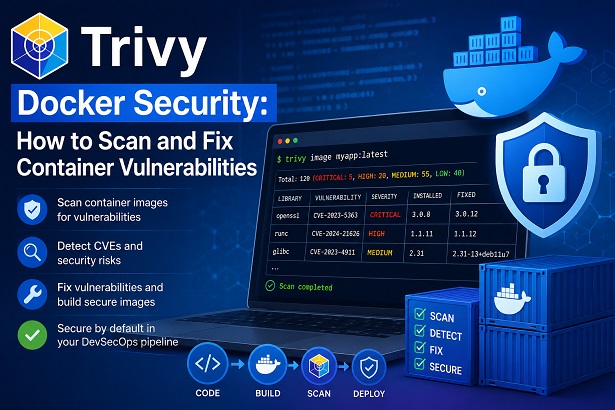
Shipping a Docker image without scanning it for vulnerabilities is like deploying code without running tests — you are leaving known problems undetected until they surface in production. Every Docker image you build is a stack of operating system packages, runtime libraries, and application dependencies. Any one of them could harbor a known CVE (Common Vulnerability and Exposure) that attackers actively exploit.
Vulnerability scanning is just one piece of the puzzle — see our complete Docker security best practices guide for the full defense-in-depth checklist.
Trivy — developed by Aqua Security and now one of the most widely adopted open-source security scanners in the DevSecOps ecosystem — solves this problem. It scans Docker images, filesystems, Git repositories, Kubernetes clusters, and Infrastructure-as-Code configurations for vulnerabilities and misconfigurations, and reports findings with enough detail to act on them immediately.
This guide covers everything you need to know to start using Trivy for Docker security: installation, scanning Docker images, understanding scan output, integrating Trivy into CI/CD pipelines, and building a remediation strategy that keeps your container security posture strong over time.
Related reading: If you are building a broader container security strategy, this article pairs directly with our guide on Docker Container Security Best Practices, which covers hardening techniques that complement Trivy scanning.
Table of Contents
- What Is Trivy and Why Use It for Docker Security
- What Trivy Scans For
- Installing Trivy
- Scanning Docker Images with Trivy
- Understanding Trivy Scan Output
- Scanning Dockerfiles and Filesystem
- Filtering and Tuning Scan Results
- Integrating Trivy into CI/CD Pipelines
- Using Trivy with Docker Scout and Other Tools
- Trivy Configuration File
- Vulnerability Remediation Strategy
- Trivy in Kubernetes Environments
- Summary and Best Practices Checklist
1. What Is Trivy and Why Use It for Docker Security
Trivy (short for Trigger Vulnerability) is an open-source, all-in-one security scanner maintained by Aqua Security. Released in 2019, it has grown into the de facto standard for container image vulnerability scanning in the open-source DevSecOps toolchain — used by engineering teams ranging from startups to Fortune 500 companies.
Why Trivy stands out among container security scanners:
Zero configuration to start. Unlike some enterprise security tools that require lengthy setup, Trivy works out of the box with a single command. Point it at an image name and it downloads the vulnerability database, scans the image, and returns results — no server, no account, no API key required.
Comprehensive coverage. Trivy does not just scan OS packages. It covers OS-level packages (Alpine, Debian, Ubuntu, RHEL, Amazon Linux), language-specific packages (npm, pip, gem, Maven, Go modules, Cargo), misconfigurations in Dockerfiles and IaC files, exposed secrets in image layers, and SBOM (Software Bill of Materials) generation.
Multiple vulnerability databases. Trivy aggregates from NVD (National Vulnerability Database), GitHub Advisory Database, RedHat, Debian, Alpine, Ubuntu, and more — giving it broader coverage than scanners that rely on a single source.
CI/CD native. Trivy is designed for pipeline integration. It supports multiple output formats (JSON, SARIF, CycloneDX, table), configurable exit codes for pipeline gating, and has official GitHub Actions and GitLab CI integrations.
Actively maintained. With thousands of GitHub stars and regular releases, Trivy’s vulnerability database is updated daily. This matters because new CVEs are disclosed constantly.
2. What Trivy Scans For
Before running your first scan, it helps to understand exactly what Trivy detects and where.
Vulnerabilities (CVEs)
Trivy matches installed packages against known CVE records. For each finding, it reports:
- CVE ID — the unique identifier for the vulnerability (e.g., CVE-2023-44487)
- Severity — CRITICAL, HIGH, MEDIUM, LOW, or UNKNOWN
- Package name and installed version
- Fixed version — the version that patches the vulnerability (if available)
- Description and references — links to NVD, vendor advisories, and exploit databases
Misconfigurations
Trivy checks Dockerfiles and other IaC files against security best practice rules — detecting issues such as:
- Running as root user
- Missing
USERinstruction - Using
ADDinstead ofCOPYfor local files - Pinning
FROMto:latestwithout a digest - Exposing sensitive ports
- Missing
HEALTHCHECKinstruction
Exposed Secrets
Trivy scans image layers and repository files for accidentally committed secrets including AWS access keys, GitHub tokens, private keys, database connection strings, and API credentials.
License Compliance
Trivy can identify the licenses of all packages in an image — useful for organizations with compliance requirements around open-source license usage (GPL, MIT, Apache, etc.).
3. Installing Trivy
Trivy supports Linux, macOS, and Windows. Here are the most common installation methods.
Linux (Debian/Ubuntu)
# Add Trivy's official apt repository
sudo apt-get install -y wget apt-transport-https gnupg lsb-release

wget -qO - https://aquasecurity.github.io/trivy-repo/deb/public.key | \
  gpg --dearmor | sudo tee /usr/share/keyrings/trivy.gpg > /dev/null

echo "deb [signed-by=/usr/share/keyrings/trivy.gpg] \
  https://aquasecurity.github.io/trivy-repo/deb \
  $(lsb_release -sc) main" | \
  sudo tee /etc/apt/sources.list.d/trivy.list

sudo apt-get update
sudo apt-get install -y trivy
Linux (RHEL/CentOS/Amazon Linux)
# Add Trivy's yum repository
cat << EOF | sudo tee /etc/yum.repos.d/trivy.repo
trivy
name=Trivy repository
baseurl=https://aquasecurity.github.io/trivy-repo/rpm/releases/\$basearch/
gpgcheck=1
enabled=1
gpgkey=https://aquasecurity.github.io/trivy-repo/rpm/public.key
EOF

sudo yum -y update
sudo yum -y install trivy
macOS (Homebrew)
brew install aquasecurity/trivy/trivyDocker (no installation required)
Run Trivy as a container — useful in environments where you cannot install software directly:
docker run --rm \
  -v /var/run/docker.sock:/var/run/docker.sock \
  -v $HOME/.cache:/root/.cache \
  aquasec/trivy:latest image nginx:1.25.3-alpine
Verify Installation
trivy --version
# Output: Version: 0.x.x
4. Scanning Docker Images with Trivy
The core use case: scanning a Docker image for vulnerabilities.
Scan a Public Image
trivy image nginx:1.25.3-alpineTrivy downloads its vulnerability database on first run (stored locally in ~/.cache/trivy), then scans the image and prints a results table to the terminal.
Scan a Local Image
If you have built an image locally and it is not yet pushed to a registry:
# Build your image first
docker build -t myapp:latest .

# Scan the local image
trivy image myapp:latest
Scan an Image from a Private Registry
# For Docker Hub private repositories
docker login
trivy image myorg/private-app:v1.2.0

# For AWS ECR
aws ecr get-login-password --region ap-southeast-1 | \
  docker login --username AWS --password-stdin \
  123456789.dkr.ecr.ap-southeast-1.amazonaws.com

trivy image 123456789.dkr.ecr.ap-southeast-1.amazonaws.com/myapp:latest
Scan by Image Digest (for reproducibility)
Scanning by digest ensures you are always scanning the exact same image, regardless of tag reassignment:
trivy image nginx@sha256:a3a9f69e51c2bcf8a2b3a5c43e4d5cde6b3e4b3f2a1c6d8e9f0a1b2c3d4e5f6Export Results to JSON
trivy image --format json --output trivy-results.json myapp:latestJSON output is useful for parsing results programmatically or feeding into a security dashboard.
5. Understanding Trivy Scan Output
myapp:latest (debian 11.8)
Here is a sample Trivy output and how to read it:
myapp:latest (debian 11.8) ========================== Total: 47 (UNKNOWN: 0, LOW: 28, MEDIUM: 12, HIGH: 5, CRITICAL: 2)
| Library | Vulnerability | Severity | Installed Version | Fixed Version | Description |
|---|---|---|---|---|---|
libssl1.1 | CVE-2023-0286 | CRITICAL | 1.1.1n-0+deb11u4 | 1.1.1n-0+deb11u5 | OpenSSL X.400 address type confusion vulnerability. |
libssl1.1 | CVE-2023-0215 | HIGH | 1.1.1n-0+deb11u4 | 1.1.1n-0+deb11u5 | OpenSSL use-after-free vulnerability during certificate verification. |
libc-bin | CVE-2022-23219 | HIGH | 2.31-13+deb11u6 | Will not fix | glibc stack buffer overflow vulnerability in sunrpc component. |
curl | CVE-2023-38545 | CRITICAL | 7.74.0-1.3+deb11u10 | 7.74.0-1.3+deb11u11 | SOCKS5 heap buffer overflow vulnerability in curl. |
Reading the output:
Library — the package containing the vulnerability. In this case, libssl1.1 and curl are system-level packages.
Vulnerability — the CVE identifier. You can look up any CVE at https://nvd.nist.gov/vuln/detail/<CVE-ID> for full details.
Severity — prioritize CRITICAL and HIGH. MEDIUM and LOW are worth tracking but rarely require immediate action unless your threat model demands it.
Installed Version — what is currently in your image.
Fixed Version — the version that resolves the CVE. If this says “Will not fix”, the maintainer has assessed the CVE as not applicable or has no current patch planned. Use your judgment on whether to accept this risk.
Title — a short description of the vulnerability type. This helps you quickly assess exploitability without looking up the full CVE record.
Severity prioritization guide:
| Severity Level | Recommended Action |
|---|---|
| CRITICAL | Remediate immediately and block deployment to production until the vulnerability has been resolved. |
| HIGH | Prioritize remediation before the next release and include the fix in the current development sprint. |
| MEDIUM | Schedule remediation during the next planned maintenance or patching cycle. |
| LOW | Monitor and address during routine dependency updates and technical debt activities. |
| UNKNOWN | Perform additional investigation, as the package may lack sufficient CVE database coverage or severity classification. |
6. Scanning Dockerfiles and Filesystem
Beyond image scanning, Trivy also checks your Dockerfile for misconfigurations before you even build the image.
Scan a Dockerfile for Misconfigurations
trivy config ./DockerfileExample output for a poorly configured Dockerfile:
Dockerfile (dockerfile)
=======================
Tests: 24 (SUCCESSES: 19, FAILURES: 5, EXCEPTIONS: 0)
Failures: 5 (HIGH: 2, MEDIUM: 2, LOW: 1)

HIGH: Specify at least 1 USER command in Dockerfile with non-root user
  → Add 'USER <non-root-user>' to your Dockerfile

HIGH: Do not use 'latest' tag for base image
  → FROM node:latest should be FROM node:20.10.0-alpine

MEDIUM: Add HEALTHCHECK instruction to your Dockerfile
  → HEALTHCHECK CMD curl -f http://localhost/ || exit 1
Scan a Local Filesystem
Useful for scanning application source code before building an image:
# Scan current directory
trivy fs .

# Scan a specific path
trivy fs /path/to/project
This scans lock files (package-lock.json, requirements.txt, Gemfile.lock, go.sum, pom.xml) for vulnerable dependencies — catching issues at the source code level before they enter the image.
Scan a Git Repository
# Scan a remote repository directly
trivy repo https://github.com/your-org/your-repo
Trivy clones the repository, scans dependencies and IaC files, and checks for exposed secrets — without requiring a local clone.
7. Filtering and Tuning Scan Results
Raw Trivy output on a base image can return dozens or hundreds of findings. Filtering helps you focus on what matters.
Filter by Severity
# Only show CRITICAL and HIGH
trivy image --severity HIGH,CRITICAL myapp:latest

# Only show CRITICAL
trivy image --severity CRITICAL myapp:latest
Ignore Unfixed Vulnerabilities
Many LOW and MEDIUM findings have no available fix. Filter them out to reduce noise:
trivy image --ignore-unfixed myapp:latestThis is particularly useful for CI/CD pipeline gates — only fail the build on vulnerabilities that can actually be fixed right now.
Exit Code for Pipeline Gating
By default, Trivy exits with code 0 regardless of findings. For CI/CD pipeline integration, set a non-zero exit code when vulnerabilities above a threshold are found:
# Exit with code 1 if any HIGH or CRITICAL vulnerabilities are found
trivy image --exit-code 1 --severity HIGH,CRITICAL myapp:latest
This causes the pipeline step to fail, blocking deployment of vulnerable images.
Using a .trivyignore File
Some vulnerabilities may be accepted risks — for example, a CVE that does not apply to your usage pattern or is formally accepted by your security team. Document these in a .trivyignore file in your project root:
# .trivyignore
# Accepted risk: CVE-2022-23219 - glibc sunrpc not used in this application
# Accepted by: security-team@company.com | Date: 2024-01-15 | Review: 2024-07-15
CVE-2022-23219

# Low severity, no fix available, not exploitable in our context
CVE-2021-33560
Always document why a CVE is ignored and set a review date. A .trivyignore entry without a justification is a security debt with no repayment plan.
8. Integrating Trivy into CI/CD Pipelines
Integrating Trivy into your CI/CD pipeline is the highest-impact step you can take — it makes vulnerability scanning automatic, consistent, and mandatory for every image that reaches production.
GitHub Actions
# .github/workflows/trivy-scan.yml
name: Trivy Docker Security Scan

on:
  push:
    branches: [main, develop]
  pull_request:
    branches: [main]

jobs:
  trivy-scan:
    name: Scan Docker Image
    runs-on: ubuntu-latest

    steps:
      - name: Checkout code
        uses: actions/checkout@v4

      - name: Build Docker image
        run: docker build -t myapp:${{ github.sha }} .

      - name: Run Trivy vulnerability scanner
        uses: aquasecurity/trivy-action@master
        with:
          image-ref: myapp:${{ github.sha }}
          format: sarif
          output: trivy-results.sarif
          severity: HIGH,CRITICAL
          ignore-unfixed: true
          exit-code: 1

      - name: Upload Trivy scan results to GitHub Security tab
        uses: github/codeql-action/upload-sarif@v3
        if: always()
        with:
          sarif_file: trivy-results.sarif
This workflow builds your image on every push, scans it with Trivy, fails the pipeline if HIGH or CRITICAL vulnerabilities are found, and uploads results to GitHub’s Security tab for visibility.
GitLab CI
# .gitlab-ci.yml
trivy-scan:
  stage: security
  image: aquasec/trivy:latest
  variables:
    DOCKER_HOST: tcp://docker:2375
  services:
    - docker:dind
  script:
    - trivy image
        --exit-code 1
        --severity HIGH,CRITICAL
        --ignore-unfixed
        --format json
        --output trivy-report.json
        $CI_REGISTRY_IMAGE:$CI_COMMIT_SHA
  artifacts:
    when: always
    reports:
      container_scanning: trivy-report.json
    paths:
      - trivy-report.json
    expire_in: 30 days
  allow_failure: false
Jenkins Pipeline
// Jenkinsfile
pipeline {
    agent any

    stages {
        stage('Build') {
            steps {
                sh 'docker build -t myapp:${BUILD_NUMBER} .'
            }
        }

        stage('Trivy Security Scan') {
            steps {
                sh '''
                    trivy image \
                      --exit-code 1 \
                      --severity HIGH,CRITICAL \
                      --ignore-unfixed \
                      --format json \
                      --output trivy-results-${BUILD_NUMBER}.json \
                      myapp:${BUILD_NUMBER}
                '''
            }
            post {
                always {
                    archiveArtifacts artifacts: 'trivy-results-*.json'
                }
            }
        }

        stage('Push to Registry') {
            when {
                expression { currentBuild.result == null }
            }
            steps {
                sh 'docker push myapp:${BUILD_NUMBER}'
            }
        }
    }
}
The Push to Registry stage only runs if the Trivy scan passed — ensuring no vulnerable image ever reaches your container registry.
9. Using Trivy with Docker Scout and Other Tools
Trivy is not the only tool in the container security ecosystem. Understanding how it compares and complements other tools helps you choose the right combination for your stack.
Trivy vs Docker Scout
Docker Scout is Docker’s built-in vulnerability scanner, integrated directly into the Docker CLI and Docker Hub. It uses the same underlying vulnerability databases as Trivy but is tightly coupled to the Docker ecosystem.
| Feature | Trivy | Docker Scout |
|---|---|---|
| Installation | Standalone command-line tool that can be installed independently. | Integrated directly into the Docker CLI ecosystem. |
| Cost | Completely free and open-source. | Offers a free tier with additional paid subscription plans. |
| Scanning Scope | Supports container images, filesystems, Git repositories, Kubernetes clusters, and Infrastructure as Code (IaC). | Focused primarily on container image analysis and recommendations. |
| CI/CD Integration | Extensive support for GitHub Actions, GitLab CI/CD, Jenkins, Azure DevOps, and other automation platforms. | Native integration with GitHub Actions and Docker workflows. |
| Output Formats | Supports Table, JSON, SARIF, CycloneDX, and other machine-readable formats. | Provides output in Table and JSON formats. |
| Best Use Case | Ideal for DevSecOps teams requiring comprehensive, multi-target vulnerability scanning. | Best suited for organizations heavily invested in Docker-native development workflows. |
For most DevOps teams, Trivy is the more flexible choice. Docker Scout is a natural fit if your workflow is heavily Docker Hub-centric and you want scanning without additional tooling.
Trivy + Grype
Grype (by Anchore) is another popular open-source scanner with similar capabilities. Some teams run both Trivy and Grype in parallel to maximize CVE detection coverage, since their databases and detection logic differ slightly. This is particularly valuable for security-sensitive environments where false negatives are costly.
Trivy + Falco
Trivy handles static security (scanning images before deployment). Falco handles runtime security (detecting anomalous behavior in running containers). Together they provide defense in depth:
- Trivy: “Does this image contain known vulnerabilities?”
- Falco: “Is this running container doing something unexpected?”
This combination is covered in detail in our Docker Container Security Best Practices guide.
10. Trivy Configuration File
For teams with consistent scanning requirements, a Trivy configuration file (trivy.yaml) eliminates the need to repeat flags on every scan command.
# trivy.yaml — place in project root or ~/.trivy/trivy.yaml

# Global settings
quiet: false
debug: false
cache-dir: ~/.cache/trivy

# Image scan settings
image:
  input: ""

# Scan settings
scan:
  security-checks:
    - vuln
    - config
    - secret

# Vulnerability settings
vulnerability:
  type:
    - os
    - library
  ignore-unfixed: true
  severity:
    - HIGH
    - CRITICAL

# Output settings
format: table
output: ""

# Exit code when vulnerabilities found
exit-code: 1

# Ignore file
ignorefile: .trivyignore
With this configuration in place, running trivy image myapp:latest automatically applies all these settings without repeating flags every time.
11. Vulnerability Remediation Strategy
Finding vulnerabilities is only half the job. You need a systematic approach to fixing them — otherwise scan results accumulate without action.
Step 1: Triage by Severity and Exploitability
Not all CVEs are equal. CRITICAL severity does not automatically mean immediate exploitation risk — some CVEs have no public exploit, affect components you do not use, or require network access you have restricted. Triage based on:
- Severity (CRITICAL/HIGH first)
- Whether a fixed version is available (
--ignore-unfixedfilters these out) - Whether the vulnerable component is actually used by your application
- Whether compensating controls exist (network isolation, WAF, minimal base image)
Step 2: Fix at the Source
Update the base image — the single highest-impact action. If your image is based on debian:11 and 30 vulnerabilities are in OS packages, switching to debian:12-slim or alpine:3.19 may eliminate most of them immediately.
# Before
FROM python:3.11-slim-bullseye

# After — newer base with fewer known CVEs
FROM python:3.12-slim-bookworm
Update application dependencies — for language-level vulnerabilities (npm, pip, Maven), update the affected packages in your dependency files and rebuild.
Step 3: Verify the Fix
Always re-scan after applying fixes to confirm the CVE is resolved:
# Scan before fix trivy image –severity HIGH,CRITICAL myapp:before-fix # Apply fix, rebuild image docker build -t myapp:after-fix . # Scan after fix — confirm vulnerability count decreased trivy image –severity HIGH,CRITICAL myapp:after-fix
Step 4: Prevent Regression
- Pin base image versions with digest:
FROM python:3.12-slim@sha256:<digest>— ensures reproducible builds - Schedule automated rebuilds of base images weekly, even without application code changes
- Set up Dependabot or Renovate to automatically open pull requests for vulnerable dependency updates
- Gate your CI/CD pipeline on Trivy scan pass — no vulnerable image reaches production without a conscious decision to accept the risk
Step 5: Document Accepted Risks
For vulnerabilities you cannot fix immediately, document them formally:
- Log accepted CVEs in
.trivyignorewith justification, accepting team, and review date - Track them in your security backlog
- Schedule a review date — accepted risks that are never reviewed become permanent blind spots
12. Trivy in Kubernetes Environments
For teams running containerized workloads on Kubernetes, Trivy offers cluster-level scanning beyond individual image scanning.
Scan a Running Kubernetes Cluster
# Scan all running workloads in the cluster
trivy k8s --report summary cluster

# Scan a specific namespace
trivy k8s --namespace production --report summary cluster

# Scan a specific workload
trivy k8s deployment/myapp --namespace production
This scans the images used by all running pods, plus Kubernetes resource configurations (RBAC policies, Pod Security Admission settings, network policies) for misconfigurations.
Trivy Operator for Kubernetes
For continuous scanning in production clusters, the Trivy Operator runs as a Kubernetes controller that automatically scans new workloads as they are deployed and stores results as Kubernetes Custom Resources:
# Install Trivy Operator with Helm
helm repo add aquasecurity https://aquasecurity.github.io/helm-charts/
helm repo update
helm install trivy-operator aquasecurity/trivy-operator \
  --namespace trivy-system \
  --create-namespace \
  --set="trivy.ignoreUnfixed=true"
Once installed, query scan results with kubectl:
# List vulnerability reports for all workloads
kubectl get vulnerabilityreports --all-namespaces

# View detailed report for a specific workload
kubectl describe vulnerabilityreport myapp-deployment -n production
This gives you a continuous, automated security posture view across your entire cluster — not just point-in-time scans.
This gives you a continuous, automated security posture view across your entire cluster — not just point-in-time scans.
Image scanning with Trivy is one of the most impactful security
controls you can add to a Docker workflow — but it works best as part
of a layered security strategy. Catching CVEs in images is only
meaningful if the host, the Compose stack, and the build pipeline
surrounding those images are equally hardened. To complete the picture,
explore the Docker Security series on bckinfo.com:
- Secure Docker Host: Complete Hardening Guide for 2026 — harden the machine running Docker: SSH, daemon configuration, firewall rules, and runtime monitoring with Falco
- Docker Compose Security: Complete Hardening Guide for 2026 — apply network segmentation, secret management, and resource limits across your entire Compose stack
- Docker Container Security Best Practices: A Comprehensive Guide — harden individual containers with non-root users, dropped Linux capabilities, and read-only filesystems
- Docker in Docker Security: Risks, Alternatives, and Safe Implementation Guide 2026 — secure your CI/CD pipeline and integrate Trivy scans as a mandatory build gate before any image is pushed
A clean Trivy scan result is a great signal — but it is the final
checkpoint in a chain of controls, not a substitute for the layers
that come before it.
Summary and Best Practices Checklist
Trivy is one of the most practical additions you can make to your Docker security workflow. It is fast to install, requires no infrastructure, and immediately surfaces real security risks that would otherwise be invisible until exploitation.
Use this checklist as your Trivy implementation reference:
| # | Practice | Status |
|---|---|---|
| 1 | Install Trivy and scan all existing production images | ☐ |
| 2 | Add Trivy image scan to every CI/CD pipeline | ☐ |
| 3 | Set --exit-code 1 to gate deployments on CRITICAL/HIGH findings | ☐ |
| 4 | Use --ignore-unfixed to reduce noise from unpatchable CVEs | ☐ |
| 5 | Scan Dockerfiles with trivy config before building | ☐ |
| 6 | Scan application filesystem with trivy fs before building | ☐ |
| 7 | Use .trivyignore for formally accepted risks with justifications | ☐ |
| 8 | Schedule weekly base image rebuilds to pick up OS patches | ☐ |
| 9 | Use a trivy.yaml config file for consistent team-wide settings | ☐ |
| 10 | Upload SARIF results to GitHub Security tab for visibility | ☐ |
| 11 | Deploy Trivy Operator for continuous Kubernetes cluster scanning | ☐ |
| 12 | Re-scan after every fix to verify vulnerability resolution | ☐ |
Container security is not a destination — it is a continuous process. Trivy gives you the visibility to know where you stand, and the CI/CD integration to ensure that posture never silently degrades.
Continue your Docker security journey: This article is part of our container security series. For hardening techniques that complement Trivy scanning, read Docker Container Security Best Practices. For runtime threat detection in running containers, explore our upcoming guide on Falco for Kubernetes.
Using Trivy in your Docker or Kubernetes workflow? Have a .trivyignore strategy that works well for your team? Share your approach in the comments.
Related posts:
 Install GitLab on Docker: Step-by-Step Guide for DevOps and IT Operations
 Docker Compose Security: Complete Hardening Guide for 2026
 Docker in Docker Security: Risks, Alternatives, and Safe Implementation Guide 2026
 Docker Network Security: A Complete Guide to Securing Container Communication in 2026
 How To Install Docker On Ubuntu 22.04
 Run Redis in Docker: Complete Setup Guide 2026
 A Beginner’s Guide to Helm: The Kubernetes Package Manager
 MongoDB with Docker Compose: Authentication, Replica Set, and Production-Ready Setup
