Docker Container Security Best Practices: A Comprehensive Guide

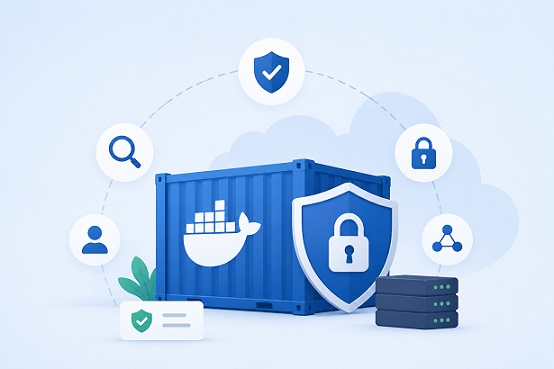
Security is often treated as an afterthought in containerized environments — until something goes wrong. Docker containers have revolutionized how we build and ship software, but they also introduce a unique attack surface that demands deliberate security hardening. In this guide, you’ll learn the most important Docker container security best practices that every DevOps engineer and developer should implement.
Table of Contents
- Why Container Security Matters
- Use Minimal and Trusted Base Images
- Never Run Containers as Root
- Scan Images for Vulnerabilities
- Keep Images Updated
- Limit Container Capabilities
- Use Read-Only Filesystems
- Manage Secrets Properly
- Restrict Network Access
- Enable Resource Limits
- Audit Logs and Runtime Monitoring
- Secure the Docker Daemon
- Summary Checklist
Why Container Security Matters
Containers share the host operating system kernel. Unlike virtual machines, there is no full hypervisor isolation between them. If a container is compromised, an attacker may be able to escape the container and gain access to the host system or other containers running alongside it.
Common threats in containerized environments include:
- Image-based attacks — pulling and running images that contain embedded malware or vulnerable dependencies
- Privilege escalation — exploiting misconfigured containers to gain root access on the host
- Secrets leakage — hardcoding API keys, database passwords, or tokens in Dockerfiles or environment variables
- Lateral movement — a compromised container accessing other services on the same Docker network
- Resource abuse — containers consuming unbounded CPU or memory, leading to denial of service
Understanding these vectors is the foundation of a solid Docker security posture. Let’s go through the practices that mitigate them.
1. Use Minimal and Trusted Base Images
Every container starts with a base image. The larger and more complex that base image, the greater the attack surface.
Use official or verified images from Docker Hub or a trusted private registry. Always prefer images published by the software vendor over third-party alternatives.
Use minimal images such as:
alpine— extremely small Linux distribution (~5MB)distroless— Google’s images that contain only runtime dependencies and no shellslimvariants — e.g.,python:3.12-slimornode:20-slim
# ❌ Avoid
FROM ubuntu:latest

# ✅ Better
FROM python:3.12-slim

# ✅ Best for production
FROM gcr.io/distroless/python3
Pin image versions instead of using :latest. Floating tags mean your build may silently pull a different image tomorrow.
# ❌ Unpredictable
FROM nginx:latest

# ✅ Reproducible and auditable
FROM nginx:1.25.3-alpine
2. Never Run Containers as Root
By default, processes inside a Docker container run as root (UID 0). If an attacker exploits your application, they inherit those root privileges — and in a misconfigured environment, that can mean root on the host.
Create a dedicated non-root user in your Dockerfile:
FROM node:20-alpine

# Create a non-root user
RUN addgroup -S appgroup && adduser -S appuser -G appgroup

WORKDIR /app
COPY --chown=appuser:appgroup . .

RUN npm ci --only=production

# Switch to non-root user before starting the app
USER appuser

CMD ["node", "server.js"]
You can also enforce this at the container runtime level:
docker run --user 1001:1001 myapp:latestIn Kubernetes, this is configured via securityContext:
securityContext:
  runAsNonRoot: true
  runAsUser: 1001
3. Scan Images for Vulnerabilities
Even if you start with a minimal, pinned base image, it may still contain known CVEs (Common Vulnerabilities and Exposures). Image scanning tools check your image layers against vulnerability databases and flag issues before you ship.
Popular vulnerability scanners:
| Tool | Type | Notes |
|---|---|---|
| Trivy | CLI / CI | Free, fast, widely used |
| Grype | CLI | Anchore’s open-source scanner |
| Docker Scout | CLI / Docker Hub | Integrated into Docker CLI |
| Snyk | SaaS / CLI | Commercial, strong IDE integration |
Example with Trivy:
# Install Trivy (on Ubuntu/Debian)
sudo apt-get install trivy

# Scan a local image
trivy image myapp:latest

# Fail pipeline on HIGH or CRITICAL vulnerabilities
trivy image --exit-code 1 --severity HIGH,CRITICAL myapp:latest
Integrate scanning into your CI/CD pipeline so no vulnerable image ever reaches production undetected.
4. Keep Images Updated
Vulnerabilities are discovered constantly. An image that passed a scan last month may be exposed today. Establish a process to regularly rebuild and republish your images, even if the application code hasn’t changed.
Best practices:
- Rebuild base images on a scheduled cadence (e.g., weekly)
- Subscribe to security advisories for your base images
- Use automated tools like Dependabot or Renovate to track image version updates
- Set up automated image scanning on every push in your CI/CD pipeline
5. Limit Container Capabilities
Linux capabilities allow fine-grained control over what privileged operations a process can perform. Docker grants a default set of capabilities to every container — but for most workloads, you need far fewer than what’s granted by default.
Drop all capabilities and add back only what’s needed:
docker run \
  --cap-drop ALL \
  --cap-add NET_BIND_SERVICE \
  mywebapp:latest
--cap-drop ALLremoves every Linux capability--cap-add NET_BIND_SERVICEre-adds just the ability to bind to ports below 1024
You should also prevent privilege escalation inside the container:
docker run \
  --security-opt no-new-privileges:true \
  mywebapp:latest
In a Dockerfile:
# Equivalent when deploying with Docker Compose
security_opt:
  - no-new-privileges:true
6. Use Read-Only Filesystems
If your container doesn’t need to write to its filesystem at runtime, make it read-only. This prevents an attacker from modifying binaries, installing persistence tools, or writing malicious scripts inside the container.
docker run --read-only myapp:latestIf your application legitimately needs to write files (e.g., temporary files or logs), mount only the specific directories it needs as writable volumes:
docker run \
  --read-only \
  --tmpfs /tmp:rw,noexec,nosuid \
  --mount type=volume,src=app-logs,dst=/var/log/app \
  myapp:latest
--tmpfs /tmpprovides a temporary in-memory filesystem for/tmpnoexecprevents execution of binaries written to that tmpfsnosuidprevents setuid binaries from escalating privileges
7. Manage Secrets Properly
One of the most common Docker security mistakes is embedding secrets directly in images or environment variables.
Never do this:
# ❌ Secrets baked into the image
ENV DB_PASSWORD=supersecret123
ENV API_KEY=my-api-key
Secrets in environment variables are visible to every process in the container, appear in docker inspect output, and may end up in logs.
Better alternatives:
Docker Secrets (Swarm mode):
echo "supersecret123" | docker secret create db_password -

docker service create \
  --secret db_password \
  myapp:latest
Secrets are mounted as files under /run/secrets/ inside the container and never stored in the image layers.
External secret managers:
- HashiCorp Vault — industry standard for secrets management
- AWS Secrets Manager / Azure Key Vault / GCP Secret Manager — cloud-native options
- Kubernetes Secrets — with optional encryption at rest and integration with external vaults
Build-time secret injection (Docker BuildKit):
# Mount a secret during build without baking it into the image
docker buildx build \
  --secret id=mysecret,src=./secret.txt \
  --tag myapp:latest .
In the Dockerfile:
RUN --mount=type=secret,id=mysecret \
    cat /run/secrets/mysecret | do_something
8. Restrict Network Access
By default, Docker containers on the same bridge network can communicate with each other freely. In a multi-service application, this can mean a compromised frontend container has network access to your database.
Use custom bridge networks with explicit service isolation:
# docker-compose.yml
services:
  frontend:
    networks:
      - frontend-net

  api:
    networks:
      - frontend-net
      - backend-net

  database:
    networks:
      - backend-net

networks:
  frontend-net:
  backend-net:
In this setup, the frontend service cannot directly reach the database — it must go through api.
Disable inter-container communication on the default bridge:
dockerd --icc=falseLimit exposed ports: Only publish the ports that external traffic actually needs.
# ❌ Avoid publishing all ports
docker run -P myapp:latest

# ✅ Publish only what's needed
docker run -p 8080:8080 myapp:latest
9. Enable Resource Limits
Without resource limits, a single container can consume all CPU and memory on the host, starving other containers and services — or enabling a denial-of-service attack.
Set memory and CPU limits at runtime:
docker run \
  --memory="512m" \
  --memory-swap="512m" \
  --cpus="1.0" \
myapp:latest--memory="512m"caps RAM at 512MB--memory-swap="512m"disables swap (same value as memory)--cpus="1.0"limits the container to one CPU core
In Docker Compose:
services:
  api:
    image: myapi:latest
    deploy:
      resources:
        limits:
          cpus: "1.0"
          memory: 512M
        reservations:
          cpus: "0.25"
          memory: 128M
Also consider setting a PID limit to prevent fork bombs:
docker run --pids-limit 100 myapp:latest10. Audit Logs and Runtime Monitoring
Static hardening is not enough. You need visibility into what’s happening inside your containers at runtime.
Enable Docker daemon logging:
Configure the Docker daemon to log container events using a centralized logging driver:
// /etc/docker/daemon.json
{
  "log-driver": "json-file",
  "log-opts": {
    "max-size": "10m",
    "max-file": "3"
  }
}
For production, consider sending logs to a centralized system like ELK Stack, Loki + Grafana, or Datadog.
Runtime security monitoring tools:
- Falco — an open-source runtime security tool that monitors syscalls and detects anomalous behavior (e.g., a container spawning a shell, writing to sensitive paths, or making unexpected network calls)
- Sysdig Secure — commercial, enterprise-grade runtime protection
- Aqua Security — full lifecycle container security platform
Example Falco rule:
- rule: Shell Spawned in Container
  desc: A shell was spawned inside a container
  condition: spawned_process and container and proc.name in (shell_binaries)
  output: "Shell spawned in container (user=%user.name container=%container.name image=%container.image.repository)"
  priority: WARNING
This kind of rule alerts you immediately if someone executes /bin/sh inside a running container — a common step in post-exploitation.
11. Secure the Docker Daemon
The Docker daemon runs as root and listens on a Unix socket (/var/run/docker.sock). Anyone with access to this socket effectively has root access to the host.
Key hardening steps:
Never expose the Docker daemon socket to containers unless absolutely necessary:
# ❌ Extremely dangerous
volumes:
  - /var/run/docker.sock:/var/run/docker.sock
If you must (e.g., for CI tools), use a proxy like Docker Socket Proxy that restricts which API calls are allowed.
Enable TLS for the Docker Remote API if you need remote access:
dockerd \
  --tlsverify \
  --tlscacert=ca.pem \
  --tlscert=server-cert.pem \
  --tlskey=server-key.pem \
  -H=0.0.0.0:2376
Use rootless Docker — run the Docker daemon itself as a non-root user:
# Install rootless Docker
dockerd-rootless-setuptool.sh install

# Start rootless daemon
systemctl --user start docker
Rootless mode significantly reduces the blast radius if the daemon is compromised.
Harden the daemon configuration (/etc/docker/daemon.json):
{
  "icc": false,
  "userns-remap": "default",
  "no-new-privileges": true,
  "live-restore": true,
  "userland-proxy": false
}userns-remapmaps container UIDs to unprivileged host UIDsicc: falsedisables inter-container communication by defaultlive-restorekeeps containers running during daemon restarts
Summary Checklist
Use this checklist as a reference for every containerized workload you deploy:
| # | Practice | Status |
|---|---|---|
| 1 | Use minimal, pinned, and verified base images | ☐ |
| 2 | Run containers as non-root user | ☐ |
| 3 | Scan images for CVEs before deployment | ☐ |
| 4 | Regularly rebuild and update images | ☐ |
| 5 | Drop all Linux capabilities; add back only what’s needed | ☐ |
| 6 | Use read-only filesystem with targeted tmpfs mounts | ☐ |
| 7 | Manage secrets via Docker Secrets, Vault, or cloud KMS | ☐ |
| 8 | Isolate services with custom networks; disable ICC | ☐ |
| 9 | Set CPU, memory, and PID limits on all containers | ☐ |
| 10 | Enable runtime monitoring with Falco or equivalent | ☐ |
| 11 | Secure the Docker daemon; never expose the socket | ☐ |
Container-level hardening is essential — but security at the container
level alone is not enough. The host running your containers, the Compose
file defining your stack, your CI/CD build pipeline, and the images you
deploy all need the same level of attention. For a complete defence-in-
depth approach, work through the Docker Security series on bckinfo.com:
- Secure Docker Host: Complete Hardening Guide for 2026 — lock down SSH, the Docker daemon, firewall rules, and enable AppArmor before launching any containers
- Docker Compose Security: Complete Hardening Guide for 2026 — isolate networks, manage secrets properly, and harden your multi-service stack with a production-ready docker-compose.yml
- Docker in Docker Security: Risks, Alternatives, and Safe Implementation Guide 2026 — secure your CI/CD build pipeline and learn why socket mounting is more dangerous than most teams realise
- Trivy Docker Security: How to Scan and Fix Container Vulnerabilities — scan your container images for known CVEs and fix vulnerabilities before they reach production
- Securing the container that runs your database is essential — but it does not protect you from data loss caused by human error, application bugs, or storage failure. Every hardened database container should be paired with a tested backup process. See our dedicated guide: MongoDB Backup: Complete Guide to Backing Up and Restoring Your Database.
Every guide in this series builds on the others. The most resilient
Docker environments are the ones that apply security controls at every
layer — not just at one.
Conclusion
Securing Docker containers is not a one-time task — it’s a continuous practice built into every stage of your development and deployment lifecycle. The most secure container is one that:
- Starts from a minimal, known-good base image
- Runs with the least privilege possible
- Has no unnecessary access to the host or other services
- Is monitored continuously at runtime
Implementing even half of the practices in this guide will put you significantly ahead of the average containerized deployment. Start with the highest-impact changes — running as non-root, scanning images, and managing secrets properly — and work your way through the rest.
Related posts:
 How To Install Docker On CentOS 7
 Setting Up an Ubuntu Docker Container with SSH Access
 How To Install Docker On Fedora 38
How To Install Docker CE On Ubuntu 24.04 LTS
How To Install Docker On Fedora 38
How To Install Docker CE On Ubuntu 24.04 LTS
 Install GitLab on Docker: Step-by-Step Guide for DevOps and IT Operations
 How to Containerize a Spring Boot Application Using Docker
 Docker Compose Security: Complete Hardening Guide for 2026
 Docker in Docker Security: Risks, Alternatives, and Safe Implementation Guide 2026
