How to Install Apache Superset with Docker Compose

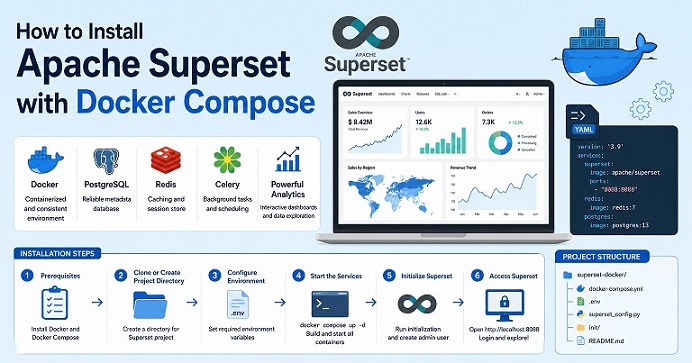
Table of Contents
- What You’re Actually Installing
- Prerequisites
- Project Structure
- The Docker Compose Stack
- Configuring Superset with superset_config.py
- First Boot and Admin User Creation
- Connecting Your First Data Source
- Why the Default Setup Isn’t Production-Ready
- Hardening for a Real Deployment
- Common Issues and Quick Fixes
- Closing Notes
If you’ve already read our overview of what Apache Superset is and why it matters for IT operations teams, this guide picks up exactly where that one left off: actually getting it running. Superset isn’t a single container — it’s a small stack of cooperating services, and Docker Compose is the fastest way to stand all of them up together correctly.
What You’re Actually Installing
A working Superset deployment is made up of four pieces, not one:
- Superset itself — the web application and API.
- A metadata database (PostgreSQL) — stores users, dashboards, chart definitions, and saved queries. This is not where your actual analytics data lives; it’s Superset’s own internal state.
- Redis — backs the cache layer and the Celery message queue.
- Celery worker + beat — run background jobs: scheduled reports, alerts, and async queries that would otherwise block the web request.
Missing any one of these gives you a Superset that starts but breaks in non-obvious ways — dashboards that never finish loading, or scheduled alerts that silently never fire.
Prerequisites
- Docker and Docker Compose installed
- At least 4GB of RAM available to Docker (Superset’s frontend build step is memory-hungry; 6GB+ is more comfortable)
- A target analytics database already reachable from wherever this stack will run (PostgreSQL, MySQL, ClickHouse, etc. — Superset visualizes data, it doesn’t store it)
Project Structure
superset-docker/
├── docker-compose.yml
├── .env
└── config/
    └── superset_config.py
Keeping superset_config.py in its own folder mounted into the container keeps configuration under version control, separate from the Superset source itself.
The Docker Compose Stack
version: '3.8'

x-superset-common: &superset-common
  image: apache/superset:latest
  env_file: .env
  volumes:
    - ./config/superset_config.py:/app/pythonpath/superset_config.py:ro
  depends_on:
    - superset-db
    - superset-redis

services:
  superset-db:
    image: postgres:15
    container_name: superset-db
    restart: unless-stopped
    environment:
      POSTGRES_DB: superset
      POSTGRES_USER: superset
      POSTGRES_PASSWORD: ${SUPERSET_DB_PASSWORD}
    volumes:
      - superset-db-data:/var/lib/postgresql/data
    healthcheck:
      test: ["CMD", "pg_isready", "-U", "superset"]
      interval: 10s
      retries: 5

  superset-redis:
    image: redis:7-alpine
    container_name: superset-redis
    restart: unless-stopped
    volumes:
      - superset-redis-data:/data

  superset-init:
    <<: *superset-common
    container_name: superset-init
    command: >
      bash -c "
        superset db upgrade &&
        superset fab create-admin
          --username ${SUPERSET_ADMIN_USER}
          --firstname Admin
          --lastname User
          --email ${SUPERSET_ADMIN_EMAIL}
          --password ${SUPERSET_ADMIN_PASSWORD} &&
        superset init
      "
    depends_on:
      superset-db:
        condition: service_healthy

  superset:
    <<: *superset-common
    container_name: superset
    restart: unless-stopped
    ports:
      - "8088:8088"
    depends_on:
      - superset-init

  superset-worker:
    <<: *superset-common
    container_name: superset-worker
    restart: unless-stopped
    command: celery --app=superset.tasks.celery_app:app worker
    depends_on:
      - superset-init

  superset-beat:
    <<: *superset-common
    container_name: superset-beat
    restart: unless-stopped
    command: celery --app=superset.tasks.celery_app:app beat
    depends_on:
      - superset-init

volumes:
  superset-db-data:
  superset-redis-data:
A couple of choices worth explaining:
x-superset-commonis a YAML anchor — it lets every Superset-based service (superset,superset-worker,superset-beat,superset-init) share the same image, env file, and config mount without repeating it five times.superset-initruns once and exits. It handles database migrations and admin user creation, then the mainsupersetservice depends on it finishing. This mirrors the same one-shot initialization pattern used for the replica set setup in our MongoDB with Docker Compose guide.- Worker and beat are separate containers, not threads inside the main app — this is what allows scheduled reports and alerts to keep running even under heavy dashboard traffic.
.env file:
SUPERSET_DB_PASSWORD=change_this_password
SUPERSET_ADMIN_USER=admin
SUPERSET_ADMIN_EMAIL=admin@yourcompany.com
SUPERSET_ADMIN_PASSWORD=change_this_password
SUPERSET_SECRET_KEY=generate_a_long_random_string_here
Generate SUPERSET_SECRET_KEY with openssl rand -base64 42 — this key signs session cookies, and a weak or default value is a direct security risk if this instance is reachable beyond localhost.
Configuring Superset with superset_config.py
# config/superset_config.py
import os

SECRET_KEY = os.environ.get("SUPERSET_SECRET_KEY")

SQLALCHEMY_DATABASE_URI = (
    f"postgresql+psycopg2://superset:{os.environ.get('SUPERSET_DB_PASSWORD')}"
    f"@superset-db:5432/superset"
)

CACHE_CONFIG = {
    "CACHE_TYPE": "RedisCache",
    "CACHE_DEFAULT_TIMEOUT": 300,
    "CACHE_KEY_PREFIX": "superset_",
    "CACHE_REDIS_HOST": "superset-redis",
    "CACHE_REDIS_PORT": 6379,
    "CACHE_REDIS_DB": 1,
}

class CeleryConfig:
    broker_url = "redis://superset-redis:6379/0"
    result_backend = "redis://superset-redis:6379/0"

CELERY_CONFIG = CeleryConfig

FEATURE_FLAGS = {
    "ALERT_REPORTS": True,
}
Notice the hostnames here — superset-db and superset-redis — match the service names defined in Compose, not localhost. This trips up almost everyone coming from a non-containerized setup: inside the superset container, localhost refers to that container itself, not the host machine or any sibling container. If you’ve worked through our Redis with Docker Compose guide, this is the same service-name-as-hostname pattern applied here for both the cache and the message broker.
First Boot and Admin User Creation
docker compose up -d
docker compose logs -f superset-init
Watch the superset-init logs until you see migrations complete and the admin user created — that container exits on its own once done. Then:
docker compose psAll services should show as running except superset-init, which will show Exited (0) — that’s expected, not a failure.
Open http://localhost:8088 and log in with the admin credentials from your .env file.
Connecting Your First Data Source
From the Superset UI: Settings → Database Connections → + Database, then provide a SQLAlchemy connection URI for your target analytics database:
# PostgreSQL
postgresql+psycopg2://analyst:password@your-db-host:5432/analytics

# MySQL
mysql+pymysql://analyst:password@your-db-host:3306/analytics

# ClickHouse
clickhousedb+connect://analyst:password@your-db-host:8123/analytics
If your analytics database is itself running in Docker on the same host, use that container’s service name as the host — not localhost, and not the container’s internal IP, which changes on restart. This is the same reasoning behind the database backup approach in our Redis and MongoDB Docker Compose guides — service names are the only stable reference point between containers.
The official Superset images ship with no database drivers preinstalled beyond what’s needed for the metadata database itself. For most analytics databases (BigQuery, Snowflake, Trino, etc.) you’ll need to extend the image with the appropriate Python driver — this is a one-line addition to a custom Dockerfile layered on top of apache/superset:latest.
Why the Default Setup Isn’t Production-Ready
It’s worth saying directly: the Compose setup above is excellent for evaluation, staging, and internal team dashboards on a single host — but it has real gaps for production:
- No backup for the metadata database. Everything — every dashboard, every saved chart — lives in
superset-db-data. Losing that volume loses your entire Superset configuration, not just analytics data. - Single host only. Docker Compose doesn’t give you the horizontal scaling or zero-downtime rolling updates that a properly sized Superset deployment eventually needs.
- No TLS termination. Port 8088 is plain HTTP by default; anything beyond local testing needs a reverse proxy in front of it.
Hardening for a Real Deployment
A few concrete steps that close the most important gaps without requiring a full move to Kubernetes:
- Back up the metadata database the same way described in our MongoDB Backup guide —
pg_dumpon a schedule, archived outside the container, with restore tested at least once. - Put a reverse proxy in front of port 8088 (nginx or Traefik) to handle TLS termination instead of exposing Superset directly.
- Disable example data — don’t set
SUPERSET_LOAD_EXAMPLES, or explicitly set it tono, since shipped example dashboards have no place in a real deployment and only add unnecessary database load on first boot. - Isolate the stack on its own Docker network, following the same network segmentation principle covered in our Docker Container Security Best Practices guide — Superset’s metadata Postgres and Redis instances should not be reachable from outside this stack.
- Rotate the
SECRET_KEYonly with a migration plan — changing it invalidates all existing user sessions, so it needs to happen during a planned maintenance window, not casually.
Common Issues and Quick Fixes
| Symptom | Likely Cause | Fix |
|---|---|---|
| Superset container starts then exits immediately | superset-init has not completed database migrations. | Check docker compose logs superset-init and wait until the initialization process exits successfully. |
| Dashboards spin forever and never load | Redis or Celery worker is unreachable. | Verify that CACHE_REDIS_HOST matches the Redis service name and confirm the superset-worker container is running. |
| Unable to connect to a database from the Superset UI | Using localhost instead of the Docker service name. | Use the database container’s Docker service name as the host. |
| Scheduled alerts and reports never run | superset-beat is not running or the ALERT_REPORTS feature flag is disabled. | Verify that both superset-worker and superset-beat containers are running and check the FEATURE_FLAGS configuration. |
| “Missing driver” error when adding a database | The Superset image does not include the required database driver. | Create a custom Docker image and install the required Python database driver. |
Conclusion
Getting Superset running with Docker Compose is mostly about understanding that it’s four services working together, not one — and that almost every confusing failure traces back to either a missing dependency (Redis, the metadata DB) or a hostname pointing at localhost when it should point at a Docker service name. Once it’s running, the same volume, backup, and network isolation discipline used elsewhere in a Docker-based stack — covered in our Redis and MongoDB Docker Compose guides — applies directly to Superset’s own metadata database as well.
Related posts:
 How to Install Docker and Docker Compose on Ubuntu 26.04 LTS
 How To Install Docker On Ubuntu 22.04
 How To Install Docker On OpenSUSE Tumbleweed
 Apache Superset: A Powerful Open-Source Data Visualization Tool for IT Operation Engineers
 How to Install Apache Arrow on Docker: A Complete Step-by-Step Guide
 How to Set Up Prometheus and Grafana Monitoring Stack with Docker Compose
 Nginx Proxy Manager with Docker Compose: Reverse Proxy and Free SSL Setup
 How to Install Ollama and Open WebUI on Ubuntu 26.04 LTS with Docker Compose
